Customize the Admin Panel
Put your own company name, logo, colors and languages on the admin panel — almost everything is set from Tools & Settings in the browser, with no code editing or redeploy.
Site name & contact
Open Tools & Settings → General Settings and fill the Company Information section: Company / Site Name, Website URL, Company Email, Company Phone, Mobile phone, Tax ID / NIT, Company Address (plus city, country and zip code). The Currency Settings section on the same screen sets the currency code, symbol, position and decimals used across the whole system.
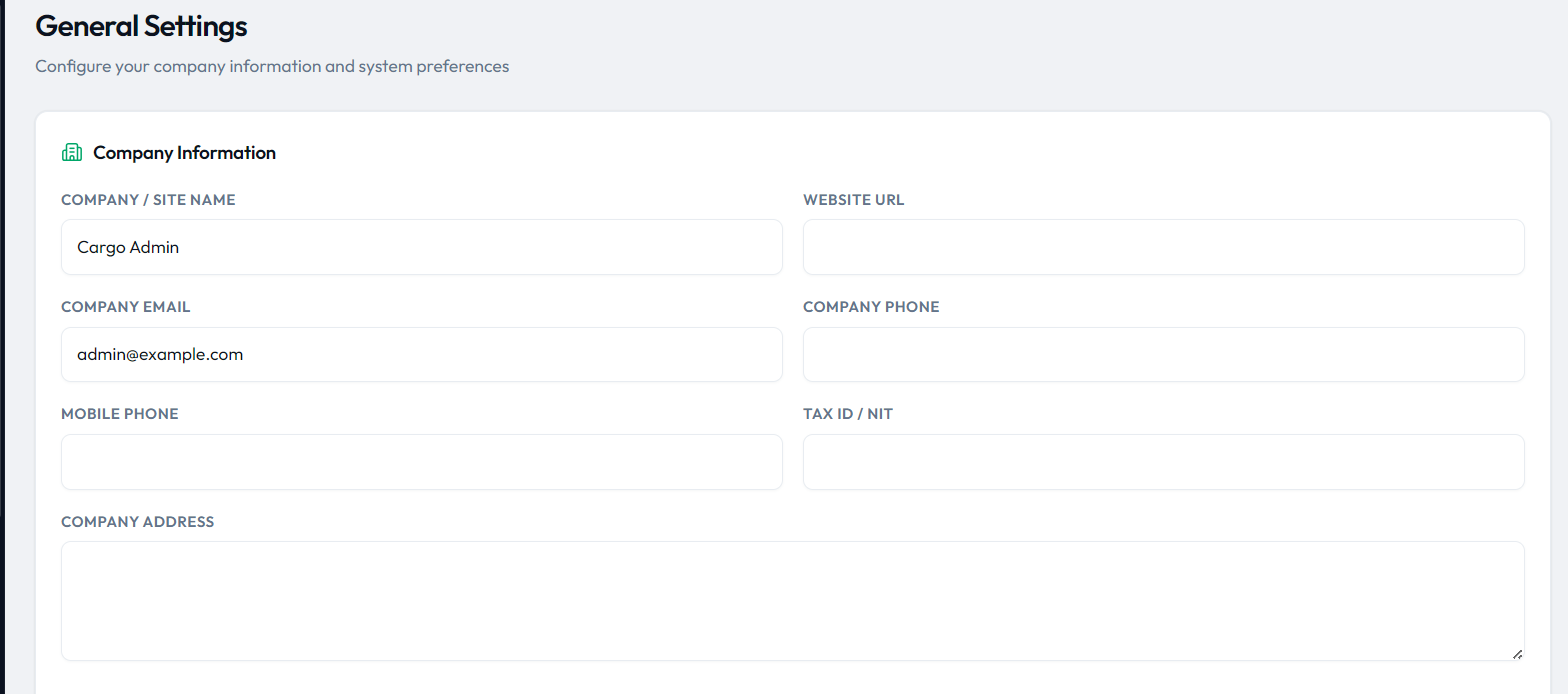
The site name shows up in the browser tab of every admin page, next to
the logo in the admin sidebar, and on the login screen —
config('app.name') is used as the fallback when the field
is empty. It also fills the {site_name} placeholder in the
email / SMS / WhatsApp templates and appears as the brand line on the
printable invoice.
config('app.name'), which comes from
APP_NAME in the .env file (it was set during
installation). If you rebrand, update APP_NAME too — the
General Settings field does not change it.
Logo & favicon
Open Tools & Settings → Logo & Favicon
(route /admin/tools/settings/logo). Three uploads are
available:
- Logo (admin) — the brand mark in the admin sidebar.
- Logo (public) — the logo on the login / auth pages and the public tracking pages. The web installer header uses it too (falling back to the admin logo).
- Favicon — the browser tab icon (recommended 45 × 45 px; png / gif / webp / ico accepted).
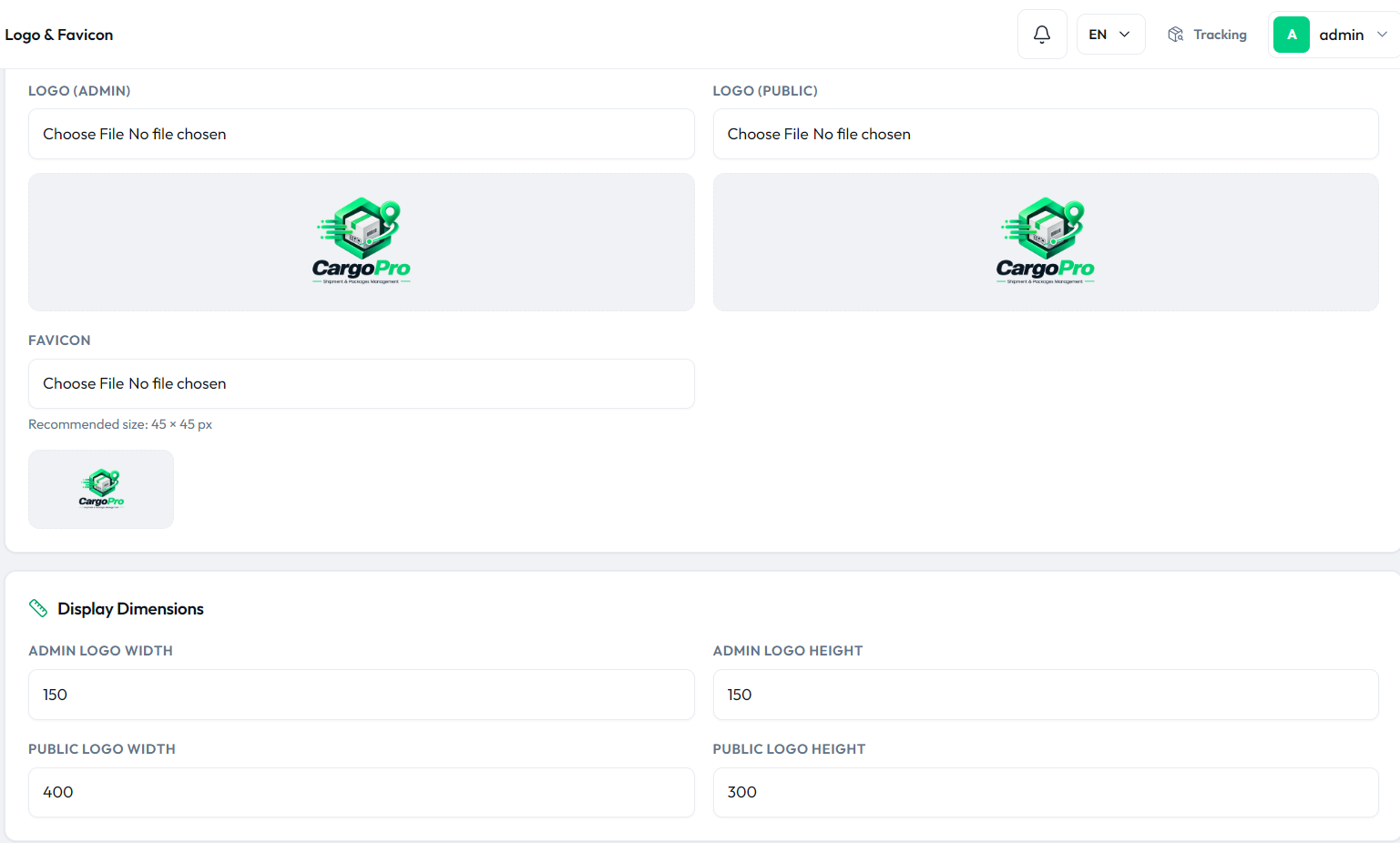
Use a square PNG for both logos — a 1:1 image renders cleanly in the sidebar and on the login screen. The Display Dimensions fields below the uploads set the rendered width/height of each logo, so a wide logo can be scaled to fit the sidebar without editing the file.
public/assets/images/
named <timestamp>_<field>.<ext> and its
path is written to the settings table; the view cache is
cleared automatically, so the change is visible immediately. Until you
upload something, the fallbacks ship in
public/assets/images/brand/
(logo.png, logo_web.png,
favicon.png).
Colors & theme
The admin UI is compiled from
cargoproadmin/resources/css/app.css (Tailwind CSS v4,
loaded via Vite). The brand accent styling is CSS-variable-driven: the
@theme token block at the top of that file defines the
whole brand scale, and every component references the tokens — so you
recolor the panel by editing variables, not by hunting down hardcoded
colors:
/* cargoproadmin/resources/css/app.css -- @theme block */
@theme {
    --font-sans: 'Outfit', ui-sans-serif, system-ui, sans-serif;
    --font-display: 'Outfit', ui-sans-serif, system-ui, sans-serif;

    /* Brand green scale */
    --color-brand-50: #ecfdf5;
    --color-brand-100: #d1fae5;
    ...
    --color-brand-500: #00d084;   /* primary accent */
    --color-brand-600: #00a668;   /* hover accent */
    ...

    /* Ink / surfaces */
    --color-ink: #0b1220;
    --color-canvas: #f0f2f5;
    --color-panel: #ffffff;
}
To rebrand, replace the --color-brand-50 …
--color-brand-900 ramp (at minimum
--color-brand-500 and --color-brand-600),
then rebuild:
cd cargoproadmin
npm run build   # or: npm run dev while you iterate
public/assets/css/installer.css styles only the web
install wizard — the live admin theme comes from
resources/css/app.css, so always edit that file.
Email, SMS & WhatsApp templates
Open Tools & Settings → Email Templates / SMS Templates /
WhatsApp Templates (the Communications card). Every notification
the system sends is a database-stored template — subject, body
and target roles — not a hardcoded view. Bodies use
{curly} placeholders that are filled at send time; the
template editor lists the available tokens, e.g.
{customer_name}, {site_name},
{tracking}, {status},
{username}, {email},
{login_url}, {order_id},
{amount}, {currency},
{datetime} (bracket aliases like [NAME] and
[TRACKING] also work; WhatsApp templates use bracket
tokens such as [CUSTOMER_FULLNAME] and
[COMPANY_NAME]).
Which template fires for which event is mapped in
app/Services/TemplateRegistry.php — e.g.
delivered → notification_delivered,
welcome → welcome_user, plus templates for
pre-alerts, courier assignment and package creation.
Because your company name, phones and address arrive through tokens
like {site_name}, editing these templates rebrands every
notification without touching code.
Invoice & print branding
The printable invoice
(resources/views/invoices/print.blade.php) takes its
brand block straight from your settings: the company name is the
Company / Site Name from General Settings, and the logo shown
next to it is your uploaded Logo (public). No template editing
is needed to put your brand on printed invoices.
General Settings also has an Invoice Settings section where you set the Default Invoice Terms text and the Company / Customer Signature lines printed at the bottom of the invoice.
Language
The admin UI language is chosen either during installation or later in Tools & Settings → General Settings → System Preferences → Language. The selector offers English, Spanish, French and Arabic; translated strings ship for English, Arabic and Spanish (see Branding & Customization → Languages for how the JSON translation files work).
dir="rtl" whenever the active locale is an RTL language,
so no extra configuration is needed.