Install the Website (Admin Panel)
Deploy the Laravel backend (cargoproadmin/) and complete the
five-step web installer — no manual SQL import or Composer knowledge required on cPanel.
How installation works
The installer is a guarded web wizard living at /install. It checks the
server, writes your .env, runs all migrations and seeders, creates your
super-admin account, and finally drops a marker file at
storage/app/installed. Once that marker exists, the installer locks
itself — every /install URL except the finish/failed result pages
redirects to the site homepage.
Choose your install path
Upload the release ZIP
In cPanel, open Files → File Manager, navigate to
public_html, click Upload, and select the release
zip you downloaded from CodeCanyon.
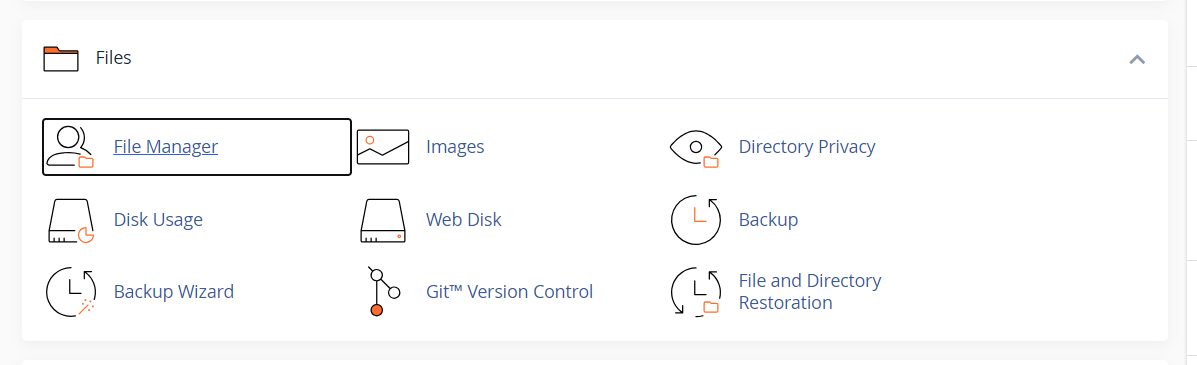
public_html.Extract and place the files
Back in File Manager, right-click the ZIP → Extract. This creates a
cargoproadmin/ folder. Its public/ subfolder must end
up as your domain's document root, so pick one of these:
Option A (recommended): move everything from
cargoproadmin/ up into public_html/, then point the
domain's document root at public_html/public (cPanel →
Domains → Manage Document Root).
Option B: leave the folder in place and set the document root to
public_html/cargoproadmin/public.
Apache users: the shipped public/.htaccess handles
pretty URLs — nothing extra to write.
Create a MySQL database and user
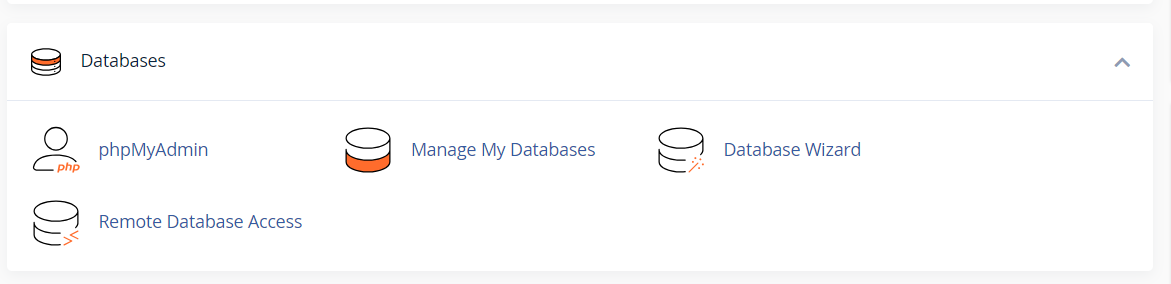
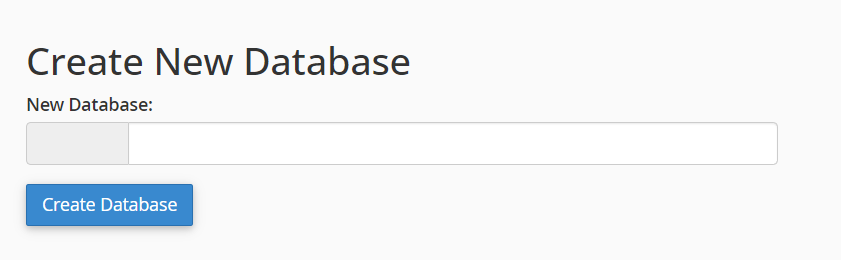
In cPanel, open Databases → MySQL® Databases. Create a database (for
example cargopro_cargo), create a user with a strong password,
then add the user to the database and tick ALL PRIVILEGES.
The installer can also create the database itself if the MySQL user has CREATE rights — cPanel users should still pre-create it, since cPanel prefixes names with the account name.
Set PHP 8.2+ and folder permissions
In cPanel, open Software → MultiPHP Manager (or Select PHP Version) and set the domain to PHP 8.2 or newer.
In File Manager (or via Terminal), make these writable by the web server:
chmod -R 775 storage bootstrap/cache
The wizard also checks that the project root is writable so it
can create the .env file.
Run the installer
Browse to https://yourdomain.com/install and follow the wizard
(all five steps are documented in the next section). Have the database name,
user, and password from step 3 at hand.
Done — save your credentials
The Finish page shows your admin username, email, and password (with Show/Copy buttons). The password is displayed only on that page — save it, then click Go to admin login.
Unpack the release
unzip cargoproadmin.zip -d /var/www
cd /var/www/cargoproadmin
Install dependencies
composer install --no-dev --optimize-autoloader
PHP 8.2+ with the extensions listed below is required by both Composer and the installer.
Point the vhost at public/
Set /var/www/cargoproadmin/public as the document root in Nginx
or Apache. The directory must contain the shipped .htaccess /
is served by index.php.
chown -R www-data:www-data /var/www/cargoproadmin
chmod -R 775 storage bootstrap/cache
Run the installer
Visit https://your-domain.test/install and complete the wizard.
The wizard itself writes .env, generates APP_KEY,
migrates, and seeds — you never touch those commands manually.
database/database.sqlite for you. Use MySQL for anything
reachable by other people.
Step 0 — Install the backend dependencies (Composer & Node)
The package ships without vendor/ and without compiled
frontend assets (marketplace package-hygiene rules). Both are rebuilt
with two commands — you do this once, before opening the
installer, in the project folder (cargoproadmin/ or
wherever you extracted the release).
1. PHP dependencies with Composer
Composer is preinstalled on most cPanel hosts (search "Composer" in cPanel). On a VPS install it from getcomposer.org. Then, in the project root:
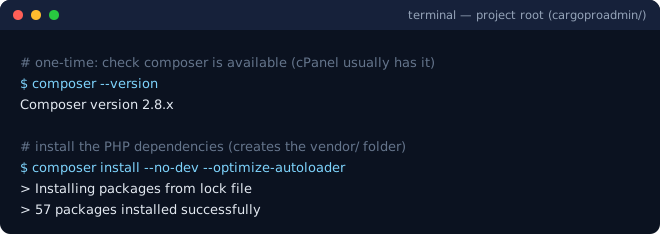
composer install --no-dev --optimize-autoloader creates the vendor/ folder from composer.lock — the exact versions CargoPRO was tested with.No composer on shared hosting and the browser route times out? Run the same command over SSH/Terminal (cPanel has a Terminal app) — it takes one to two minutes.
2. Frontend assets with Node.js and npm
Install Node.js 22 LTS (minimum 20.19 — the
bundled Vite 7 will refuse older versions) from
nodejs.org;
on cPanel use Setup Node.js App → Node.js version or the
Terminal. Then, still in the project root:
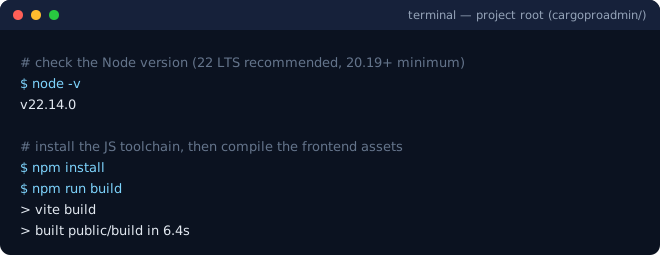
npm install fetches the toolchain; npm run build compiles the admin CSS/JS into public/build/.Already have public/build/ from the zip or a previous build? The npm step is then optional — it is only needed to regenerate assets after you customize resources/css or resources/js.
vendor/ to run.
The wizard, step by step
Both install paths end at the same wizard. Its five steps — Welcome → Requirements → Permissions → Setup → Finish — are shown as a progress indicator at the top of every installer page.
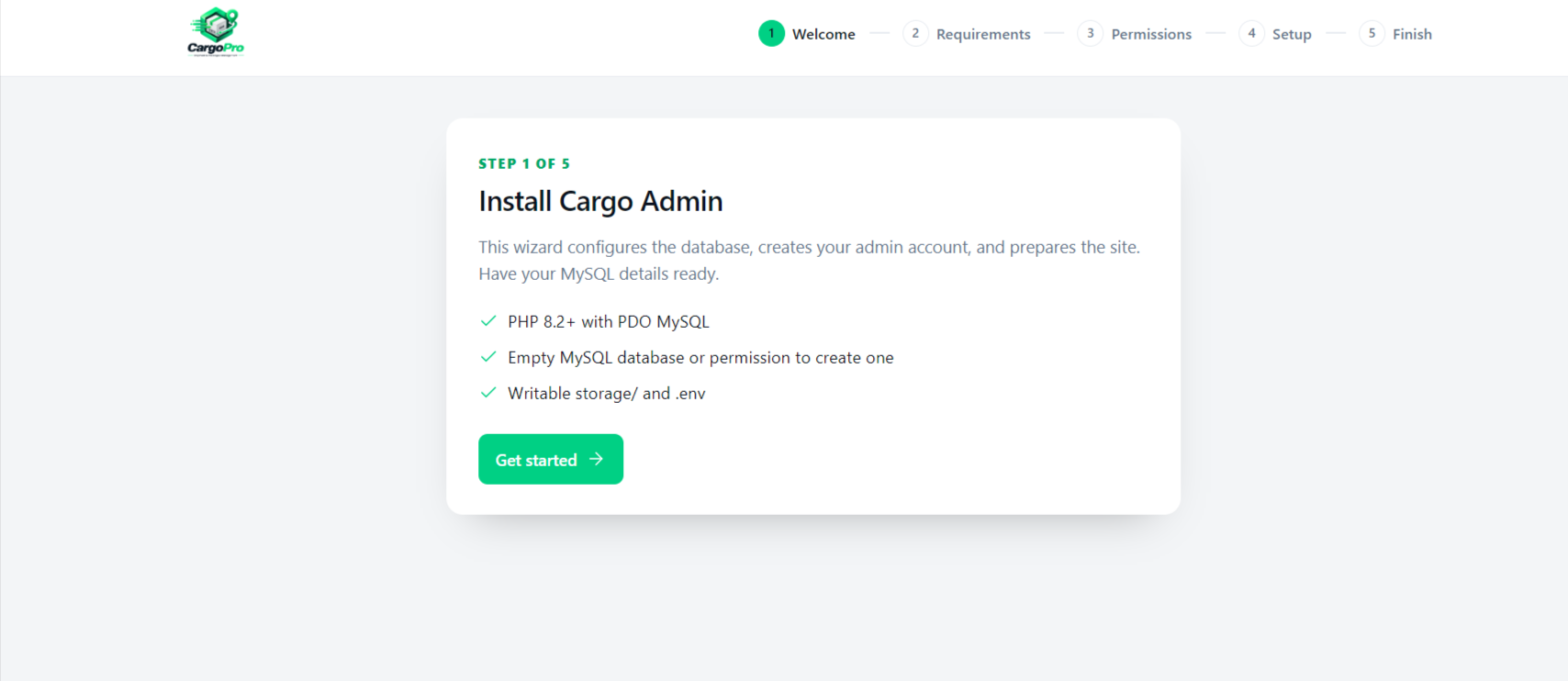
Step 1 — Welcome (/install)
A checklist telling you what to have ready: PHP 8.2+ with PDO MySQL, an empty
MySQL database (or permission to create one), and writable
storage/ plus .env. Click Get started.
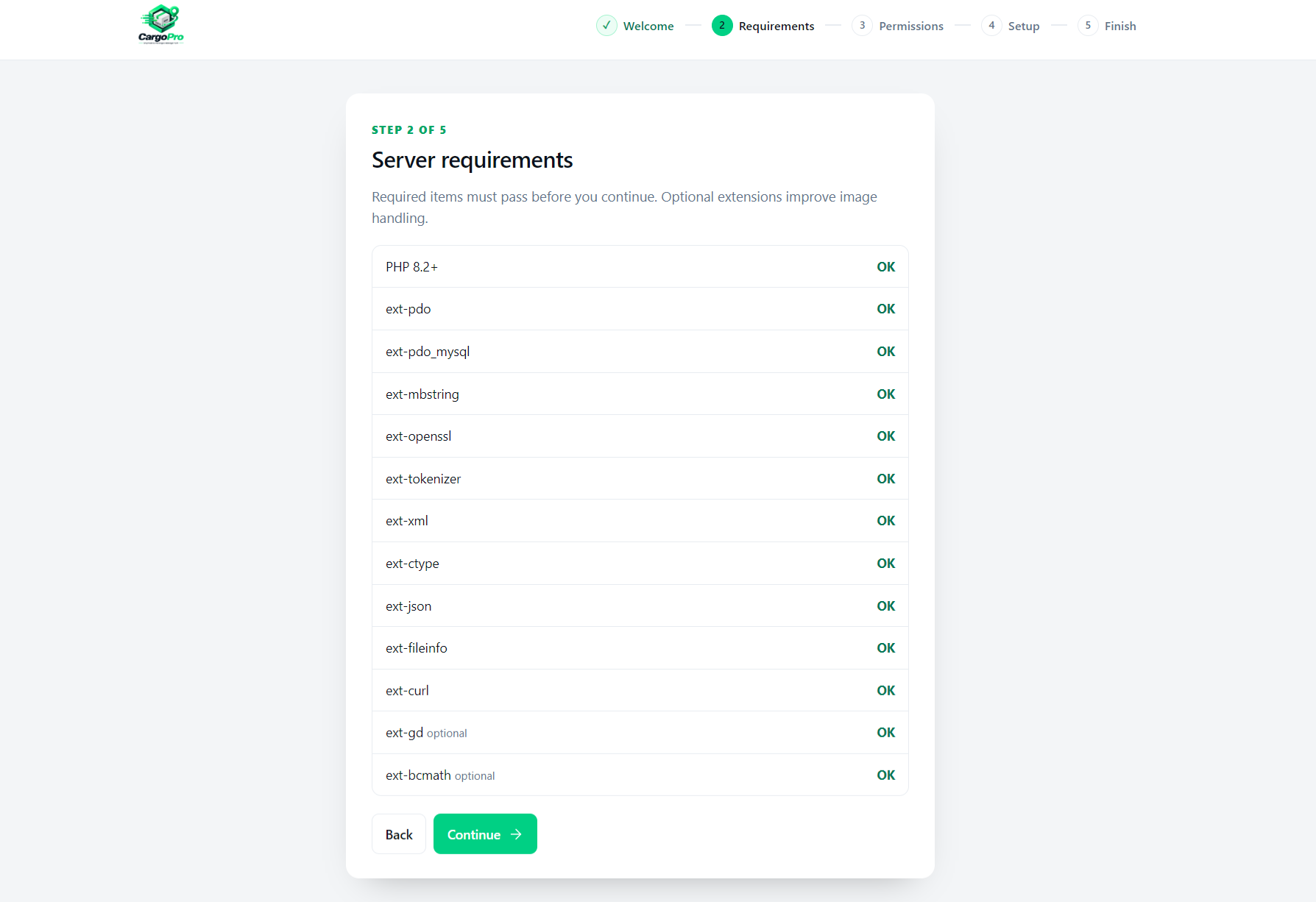
Step 2 — Requirements (/install/requirements)
Checks the live PHP version and loaded extensions. Required rows must all pass before the Continue button unlocks:
Missing gd or bcmath only warns — image
handling degrades slightly but the install proceeds.
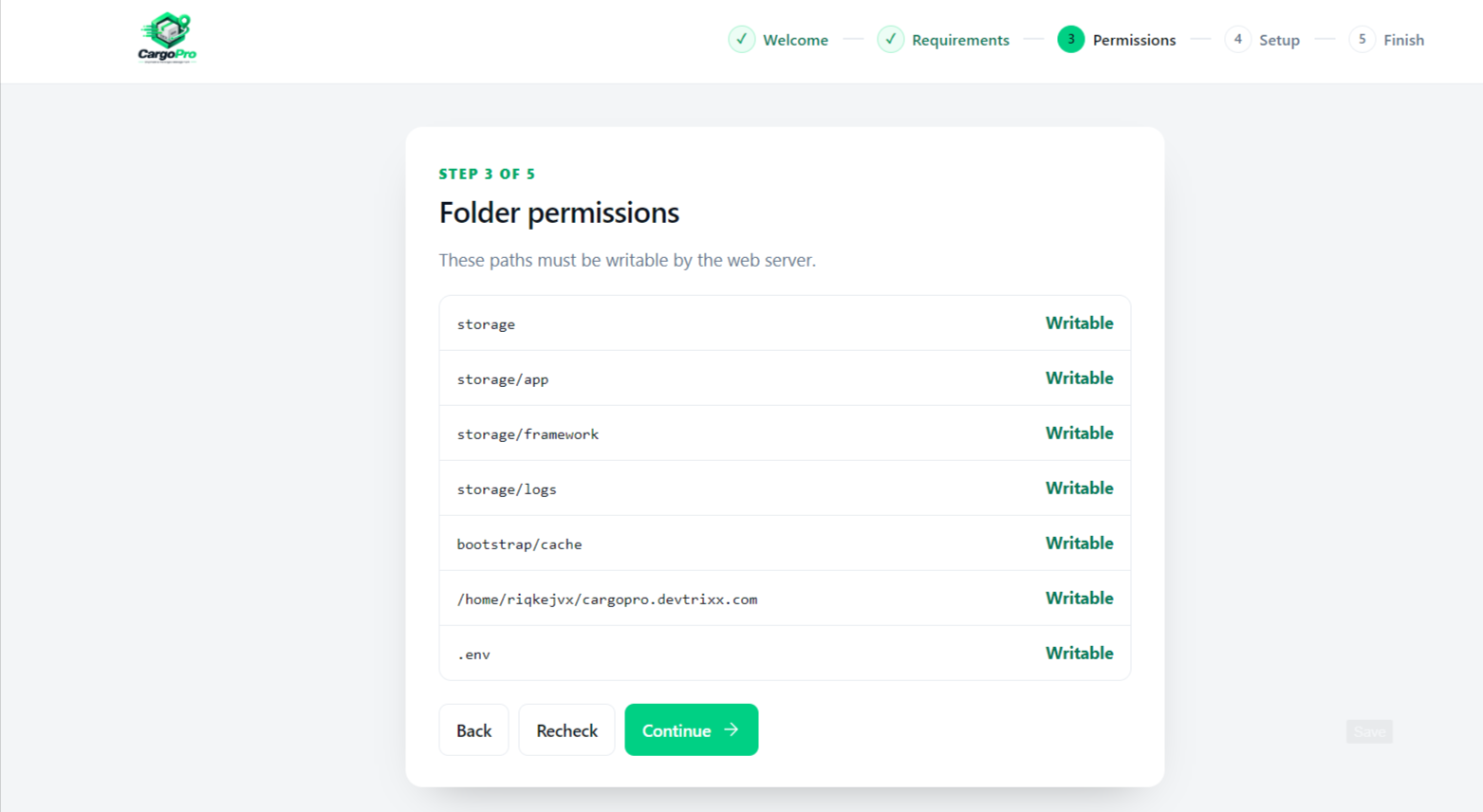
Step 3 — Permissions (/install/permissions)
Verifies that these paths exist and are writable by the web server (a Recheck button re-runs the test after you fix something):
storage/
storage/app
storage/framework
storage/logs
bootstrap/cache
.          (project root, so .env can be created)
.env       (writable once it exists)
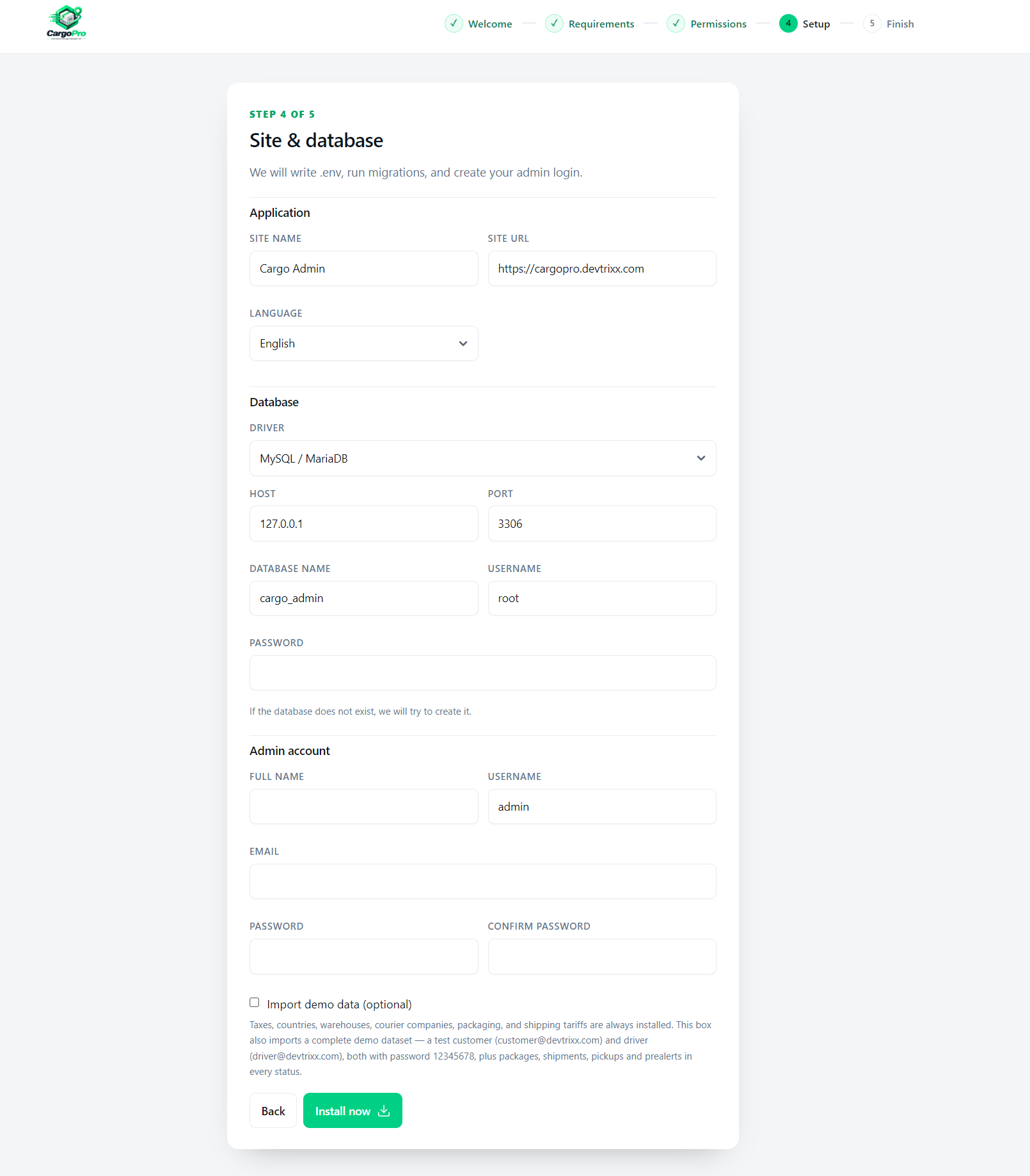
Step 4 — Setup (/install/setup)
The single setup form. There are no SMTP fields here — mail settings are configured later (see below). The validated fields are:
| Group | Field | What to enter |
|---|---|---|
| Application | Site name | Your brand name (max 80 chars) |
Site URL | Pre-filled from the current URL; must be a valid URL | |
Language | English, Español or العربية | |
| Database | Driver | MySQL / MariaDB (production) or SQLite (local only) |
Host / Port | Defaults 127.0.0.1 and 3306; on cPanel use localhost | |
Database name | Letters, numbers and underscores only; created if missing | |
Username / Password | The MySQL user you created (password may be empty) | |
| Admin account | Full name | Split into first/last name automatically |
Username | Default admin; 3–40 chars, letters/numbers/dashes/underscores | |
Email + Password | Password min 8 chars, entered twice (confirmed) | |
| Demo | Import demo data | Checkbox — see below |
Core catalog data (taxes, countries, warehouses, courier companies, packaging,
shipping tariffs) is always installed. The checkbox additionally imports a
full demo dataset: test customer customer@devtrixx.com and driver
driver@devtrixx.com (both password 12345678) plus
packages, shipments, pickups and prealerts in every status — see
Demo Data.
Clicking Install now may take a minute — migrations and seeders run synchronously with a raised 300-second time limit.
Step 5 — Finish (/install/finish)
A success screen with your admin name, username, email and password (with Show/Copy buttons — the password appears only here), any non-fatal seeder warnings, and two buttons: Go to admin login and View site. If anything failed you get the Failed page instead, with the exact error and a Try setup again button.
Behind the scenes the installer wrote
storage/app/install-result.json (mode 0600) and created the
storage/app/installed marker that locks the wizard. The admin password travels through your browser session only — it is never written to disk and cannot be viewed again after leaving the finish page.
After the installer
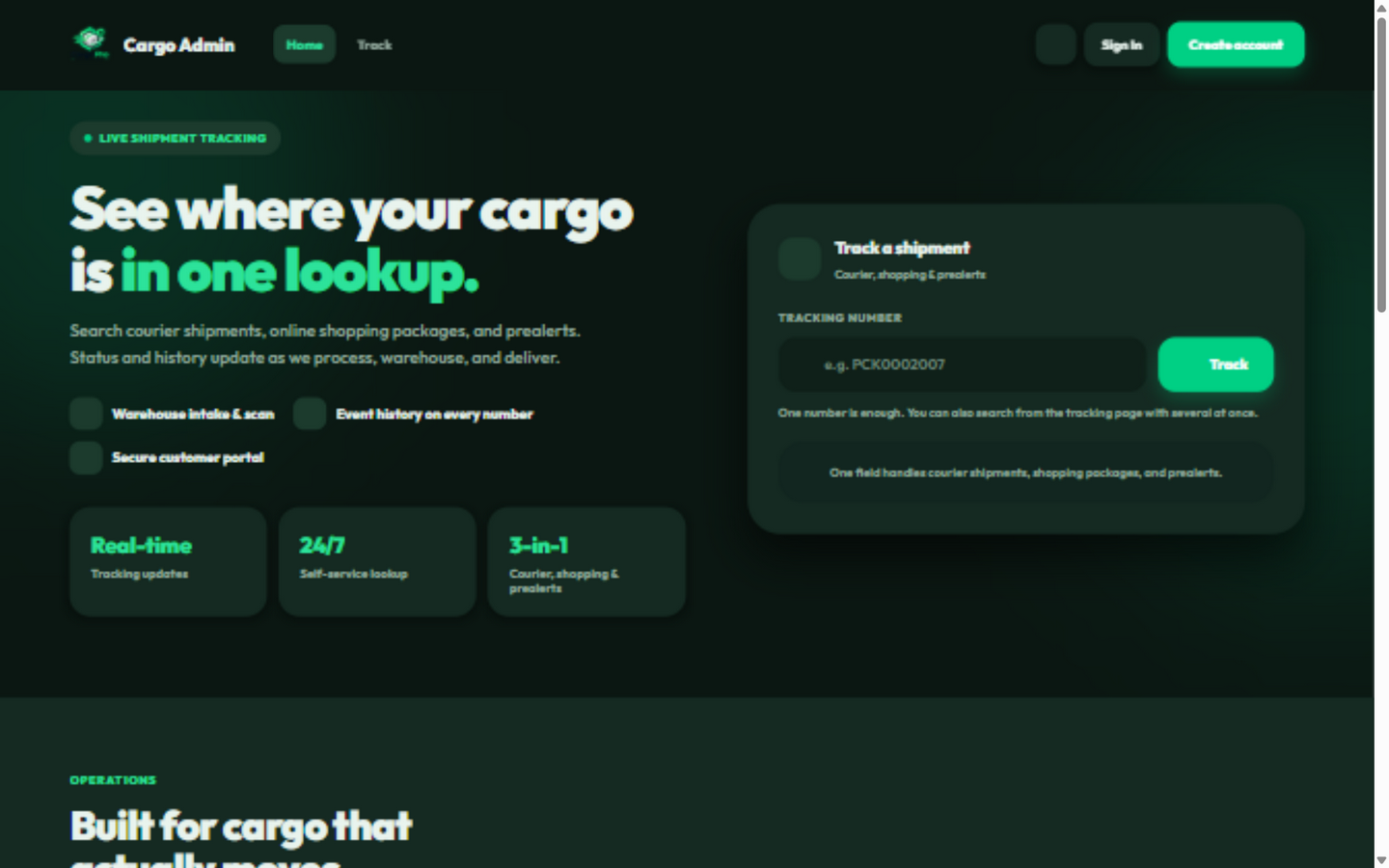
When the wizard finishes, your site is live. The public landing page
greets visitors with the tracking lookup — no login needed — and staff
sign in from /login to reach the operations console:
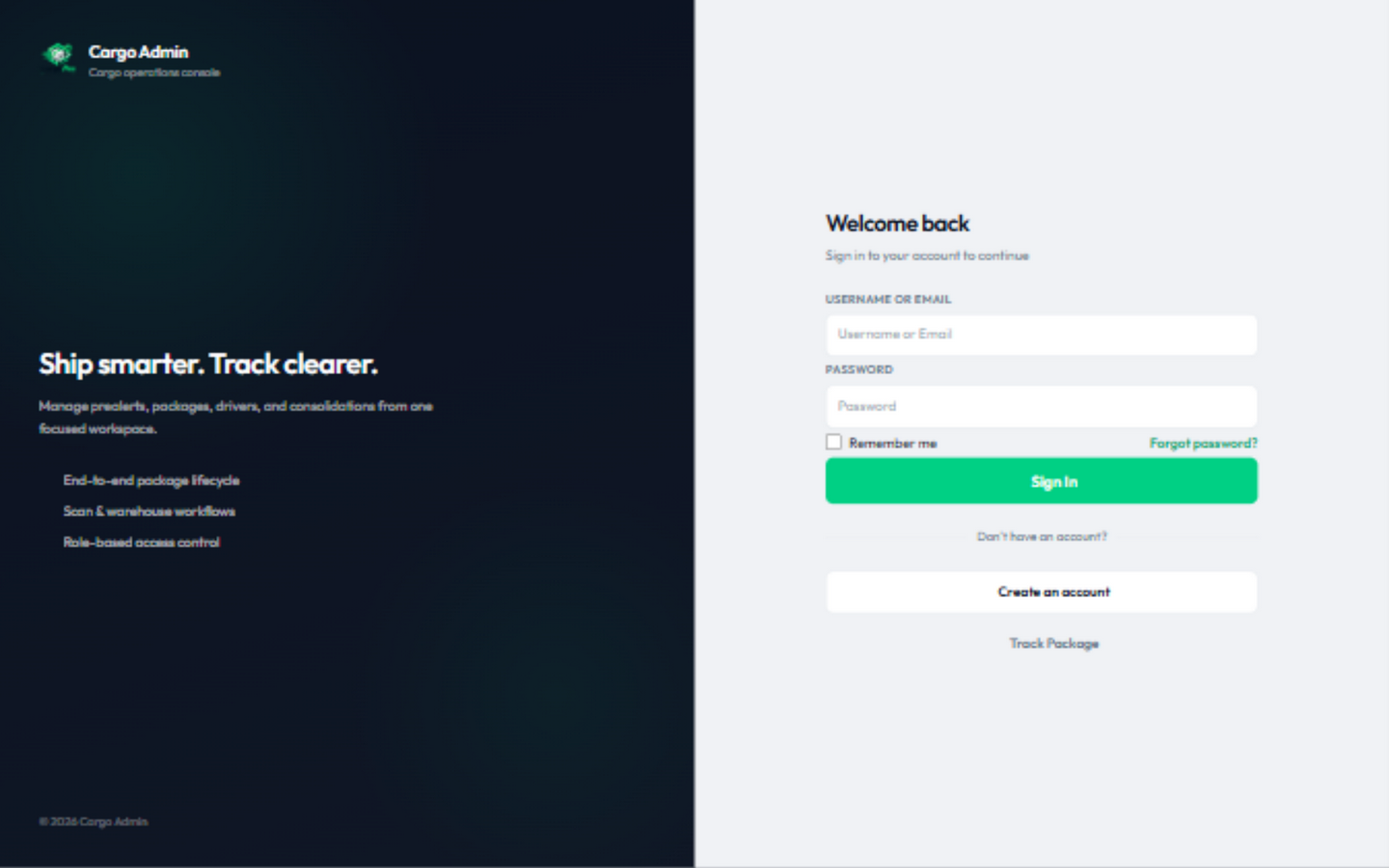
/login — use the admin account you created in the wizard..env.example to .env and writes
APP_NAME, APP_URL, APP_LOCALE,
APP_KEY and all DB_* values into it. Never re-upload or
overwrite .env when updating files — you would wipe your database
credentials and encryption key. SMTP/mail and other advanced keys are edited in this
same file (or in admin Tools) after installation.
Add the scheduler cron entry. Reminders, escalation jobs and cleanup tasks
depend on Laravel's scheduler. In cPanel open Advanced → Cron Jobs, add a job
that runs every minute (* in Minute, Hour, Day, Month, Weekday fields),
with this command:
* * * * * cd /path-to-cargoproadmin && php artisan schedule:run >> /dev/null 2>&1
Optional: a queue worker. The installer sets
QUEUE_CONNECTION=database. Notifications will queue as database jobs —
run a worker so they dispatch promptly:
php artisan queue:work --tries=3
On a small VPS, running this under Supervisor (or as a systemd
service) keeps it alive; alternatively set QUEUE_CONNECTION=sync in
.env to send notifications inline without a worker.
Public storage symlink. The installer already runs
php artisan storage:link for you, creating
public/storage. If uploaded images ever 404 after moving the project
between servers, just run it again by hand — it is idempotent.
Logo and language. The site name you typed is stored, but branding and default language are changed any time in the admin panel — see Admin Tools and Branding & Customization.
Common cPanel pitfalls
public_html and left everything in
public_html/cargoproadmin/ while the document root still points at
public_html, the site is unreachable or serves raw files. Either move
the contents up one level or repoint the document root to
.../cargoproadmin/public.
cargoproadmin/public — never the project root.
Serving the root exposes .env (database password, APP_KEY) to anyone
who types its URL.
mod_rewrite
is disabled or AllowOverride is off, so the shipped
public/.htaccess is ignored. Ask your host to enable both (LiteSpeed,
the common cPanel web server, is compatible).