Firebase & Push Notifications
How to enable real lock-screen push notifications in the mobile apps with Firebase Cloud Messaging — the Firebase project, the HTTP v1 service account in the admin panel, and the push template seeder.
Part 1 — Configure the apps in Firebase
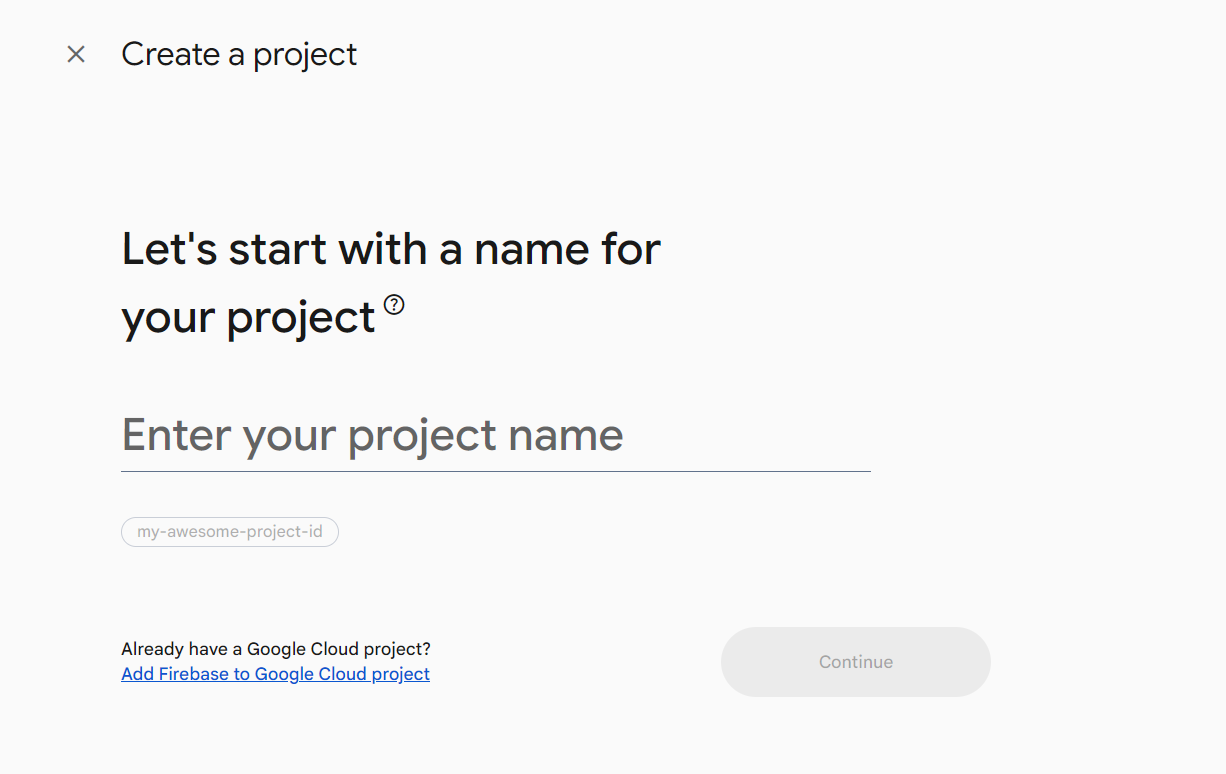
Create the Firebase project
Go to console.firebase.google.com and create a project (or reuse an existing one). One project can hold both apps.
Add the Android apps with the exact package names
In the Firebase console add an Android app per Flutter
project. The package name must match the
applicationId in each app's
android/app/build.gradle.kts:
Package name: com.devtrixx.cargouser
Source: cargoproapp/android/app/build.gradle.kts
(applicationId = "com.devtrixx.cargouser").
Package name: com.devtrixx.cargodriver
Source: cargoprodriver/android/app/build.gradle.kts
(applicationId = "com.devtrixx.cargodriver").
com.devtrixx.cargouser and
com.devtrixx.cargodriver (iOS bundle ids match). If you
publish under your own brand, change
applicationId in
android/app/build.gradle.kts and
PRODUCT_BUNDLE_IDENTIFIER in
ios/Runner.xcodeproj/project.pbxproj before
adding the apps in Firebase — the package name is baked into the
Firebase config and cannot be edited afterwards. Steps:
Rename the application id / bundle id.
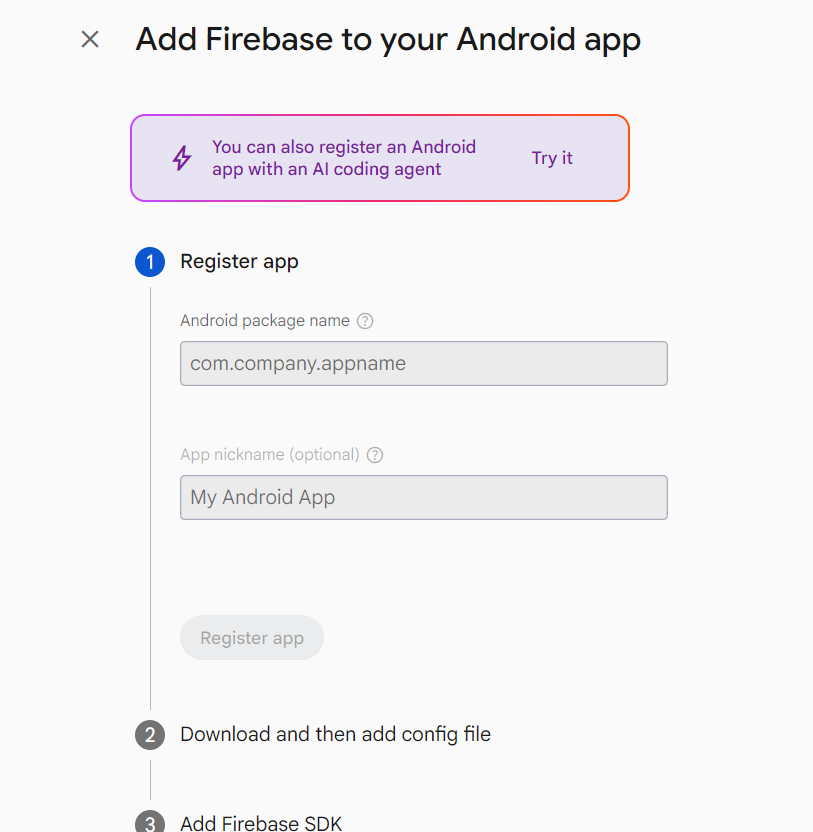
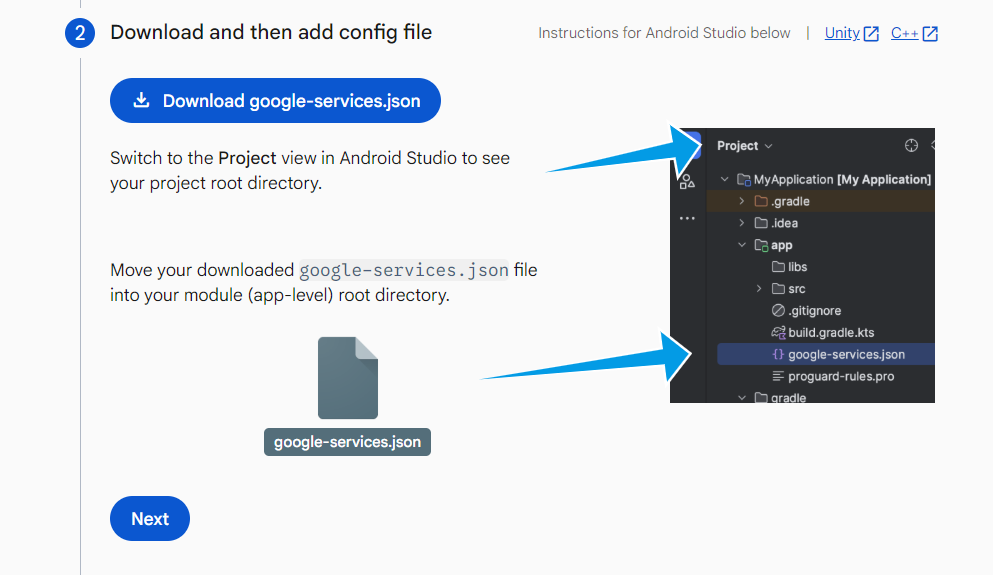
applicationId as the Android package name, then click Register app.Download the generated google-services.json and put
it in the app's android/app/ folder (e.g.
cargoproapp/android/app/google-services.json).
google-services.json and place it in the app's android/app/ folder.Add the iOS app
Add an iOS app with the bundle id you use in Xcode — the
shipped defaults are com.devtrixx.cargouser (user app)
and com.devtrixx.cargodriver (driver app) — and
download GoogleService-Info.plist into
ios/Runner/ of the app you are configuring. Open
ios/Runner.xcworkspace once in Xcode and verify
Runner → Signing & Capabilities has Push Notifications
(and Background Modes → Remote notifications) —
flutterfire configure usually adds these.
Run flutterfire configure in EACH app folder
dart pub global activate flutterfire_cli

# user app
cd cargoproapp
flutterfire configure

# driver app
cd ../cargoprodriver
flutterfire configure
The CLI regenerates lib/firebase_options.dart with
real values and refreshes the native config files
(android/app/google-services.json,
ios/Runner/GoogleService-Info.plist).
User app: lib/firebase_options.dart ships as a
placeholder — DefaultFirebaseOptions.isPlaceholder stays
true and push stays disabled until this step runs.
Driver app: initializes Firebase from the native config
files; its Gradle build applies the google-services plugin only when
android/app/google-services.json exists, so the project
still builds without one.
Part 2 — Connect the server
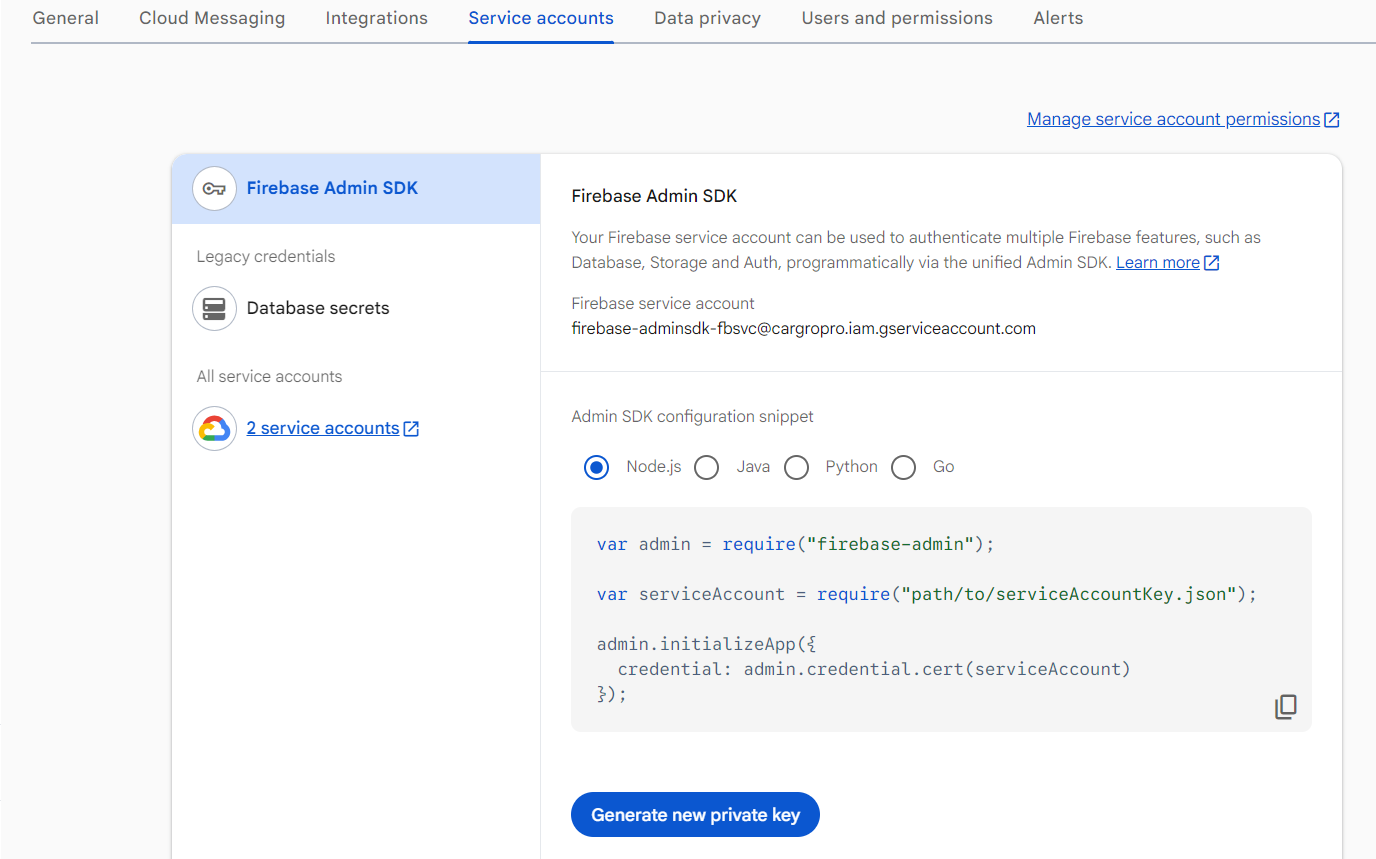
Download a Firebase service account key
In the Firebase console open Project settings → Service
accounts. Keep the default Firebase Admin SDK account selected
and click Generate new private key. That downloads a JSON
file with "type": "service_account",
project_id, client_email and
private_key.
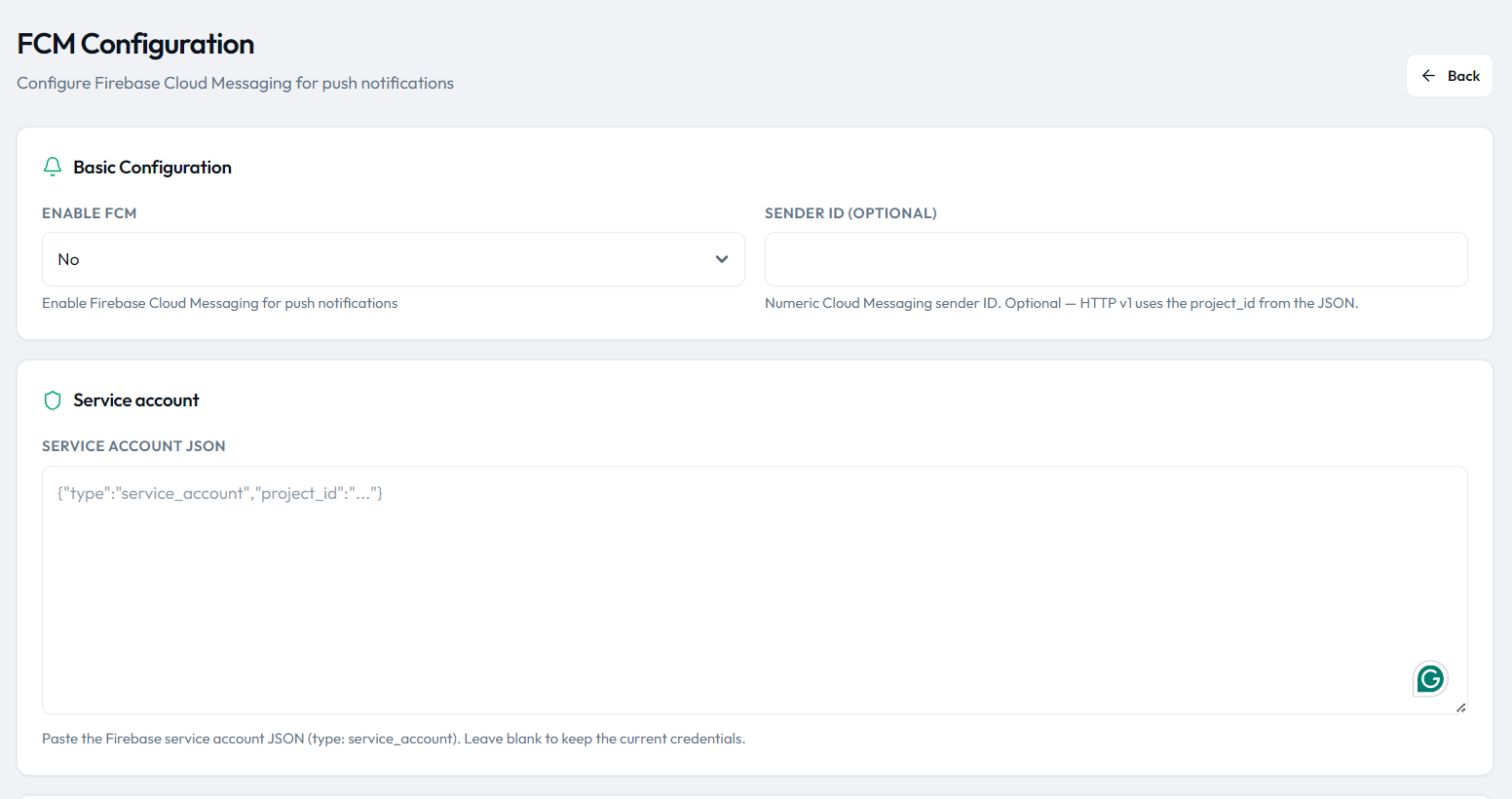
Paste the JSON into the admin panel and enable FCM
In the Admin Panel go to Tools → FCM settings: toggle FCM
on and paste the full service account JSON. This writes
fcm_active and fcm_service_account
(fcm_sender_id is optional — HTTP v1 uses
project_id from the JSON). From then on
FcmService mints a short-lived OAuth token and POSTs
each device token to
https://fcm.googleapis.com/v1/projects/{project_id}/messages:send.
Seed the push templates
On the server, run the seeder that creates the localized push
templates FcmService resolves for each event:
php artisan db:seed --class=PushTemplatesSeeder
It creates the notification_default passthrough
(forwards the notification's own title/message) plus dedicated
templates for package_registered,
shipment_registered, pickup_created,
status_updated, delivered,
payment_confirmed, package_assigned,
self_pickup_booked, invoice_uploaded and
prealert_created — each in English, Arabic and Spanish,
for the customer and admin roles. The seeder is idempotent
(updateOrCreate), so re-running it is safe.
What the app does automatically
| Event | Action |
|---|---|
| Login / register / app start with a session | Firebase init → permission prompt → token → POST /api/device-tokens |
| Google rotates the token | onTokenRefresh re-registers the new token automatically |
| Settings → Push notifications toggled off, logout or session expiry | token removed via DELETE /api/device-tokens (best effort) |
| Push while the app is foregrounded | shown as a local notification + inbox refresh |
| Push while backgrounded / terminated | shown by Android / iOS automatically |
The driver app registers through the equivalent alias
POST /api/notifications/device-token once the driver
signs in.
Verify it works
Send a test push from the admin panel
Tools → FCM has a Send test action
(FcmService::sendTest) that pings the first active
registered token.
Check that the device token row exists
Log in once on a device with the push toggle on, then:
php artisan tinker
> \App\Models\DeviceToken::count()
Trigger a real event and watch the log
Update a package status in the admin panel and tail
storage/logs/laravel.log — you should see
FCM send finished with the token counts.
Troubleshooting
| Symptom | Cause / fix |
|---|---|
PushNotificationService: Firebase not configured yet | flutterfire configure was never run — lib/firebase_options.dart is still the placeholder |
FCM service is not active, skipping in laravel.log | Tools → FCM switch is off or the service account JSON is missing |
No FCM tokens found for user | the app never registered — log in once on the device with the push toggle on |
No push template found | seeder not run — run php artisan db:seed --class=PushTemplatesSeeder; notification_default covers unknown types once seeded |
| Pushes appear only inside the app | notification permission denied on the phone — check the OS notification settings |
| iOS pushes never arrive | FCM requires a physical device; the iOS simulator does not receive pushes |
UNREGISTERED, NOT_FOUND
or a matching invalid-token status, FcmService automatically
deactivates that row in device_tokens, so stale installs
stop counting as failures.