Install the User App (Customer App)
How to point the Flutter customer app at your CargoPRO server and produce installable Android, iOS and web builds.
Setup steps
Install Flutter 3.41+
The app requires Flutter 3.41 or newer (Dart SDK ^3.11.0 — see
cargoproapp/pubspec.yaml). Install from
flutter.dev/install
and run flutter doctor until it reports no blocking issues.
Fetch the packages
Open a terminal in the cargoproapp/ folder and run:
flutter pub getPoint the app at your server
The API base URL is a single compile-time constant in
cargoproapp/lib/constants/api_constants.dart — there is no
environment switching or --dart-define flag. Edit the
baseUrl field of the ApiConstants class:
// cargoproapp/lib/constants/api_constants.dart
class ApiConstants {
  // Paths below are relative to baseUrl, which already includes /api.
  // Base URL - Update this to match your Laravel backend
  static const String baseUrl = 'https://your-domain.com/api';
Everything else (Dio in lib/services/api_service.dart, the
connectivity check in lib/services/connectivity_service.dart,
and all endpoint paths like /auth/login) is derived from this
one constant, so this is the only line you change.
/api (and must not have a trailing
slash after it) — endpoint constants such as
/auth/login are appended verbatim to
baseUrl.
Configure Firebase for push (optional)
Push notifications stay gracefully disabled until Firebase is
configured. lib/firebase_options.dart ships as a placeholder
(DefaultFirebaseOptions.isPlaceholder is
true), and
lib/services/push_notification_service.dart simply logs
"Firebase not configured yet" and returns — the app, login and the
in-app notification inbox all work without it.
To enable real FCM push, activate the FlutterFire CLI and run
flutterfire configure, which regenerates
firebase_options.dart and downloads
android/app/google-services.json and
ios/Runner/GoogleService-Info.plist:
dart pub global activate flutterfire_cli
flutterfire configure
The full walkthrough (project creation, service account JSON, iOS plist) is in the Firebase & Push guide.
Run it or build for release
With a device or emulator connected:
flutter runFor distributable artifacts:
flutter build apk --release
flutter build appbundle
build/app/outputs/flutter-apk/app-release.apk is the
installable APK; build/app/outputs/bundle/release/app-release.aab
is the Play Store bundle.
flutter build ios). Android and web builds work on any
desktop OS.
Building: IDE or terminal
Open the cargoproapp/ folder in Android Studio (with the
Flutter plugin installed). Pick a device in the toolbar and press
Run to launch on it. For release artifacts open
Terminal at the bottom and run the same
flutter build apk --release /
flutter build appbundle commands — the outputs appear in
build/app/outputs/, which you can reveal with
right-click → Reveal in Explorer.
List attached devices and run on the first one:
flutter devices
flutter run
Release builds:
flutter build apk --release
flutter build appbundle
Build a signed release (APK & app bundle)
Release builds must be signed with your own keystore. Both apps
already ship with the Gradle signing configuration in place — they read
android/key.properties and sign automatically. You create
the keystore and the properties file; no Gradle editing is required.
Create your upload keystore
keytool -genkey -v -keystore ~/upload-keystore.jks \
        -keyalg RSA -keysize 2048 -validity 10000 \
        -alias upload
Pick strong passwords — every Google Play update must be signed with this same key, so back the keystore up and record the passwords.
Create android/key.properties
Create android/key.properties and copy the keystore
into android/app/:
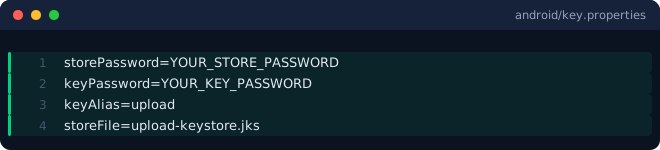
android/key.properties needs. storeFile resolves relative to android/app/.key.properties and .jks files are your
private signing credentials — the apps' .gitignore
already excludes them; keep them out of any zip you publish too.
Build
The Gradle release block already uses the keystore:
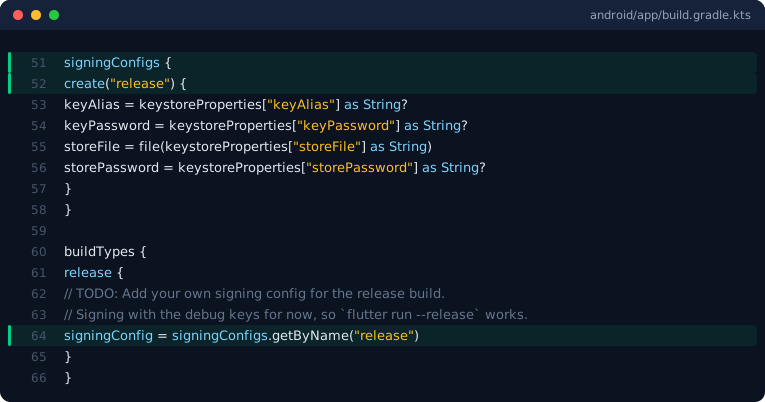
signingConfigs.release block — no edits needed.flutter build apk --release # installable APK flutter build appbundle --release # Google Play bundle
Outputs: build/app/outputs/flutter-apk/app-release.apk
and build/app/outputs/bundle/release/app-release.aab.
Verify with jarsigner -verify app-release.apk
(jar verified expected), then upload the
.aab in Play Console. Bump the build number in
pubspec.yaml before every upload.
What happens at startup
The gate in cargoproapp/lib/main.dart decides which screen
opens, in this order: connectivity first, then the saved auth token, then
the onboarding flag.
Changing the app icon & splash
All branding flows from one source file. Replace
cargoproapp/assets/logo.png (a square PNG of 1024×1024 px or
larger is recommended) and the in-app logo plus splash update automatically —
the splash, onboarding, login and offline screens all render
assets/logo.png through the shared
CargoAppMark widget in
lib/screens/common/app_mark.dart.
The OS-level launcher icons and native splash bitmaps are separate files you regenerate at fixed sizes:
| Target | File | Size |
|---|---|---|
| Android launcher — mdpi | android/app/src/main/res/mipmap-mdpi/ic_launcher.png | 48×48 |
| Android launcher — hdpi | android/app/src/main/res/mipmap-hdpi/ic_launcher.png | 72×72 |
| Android launcher — xhdpi | android/app/src/main/res/mipmap-xhdpi/ic_launcher.png | 96×96 |
| Android launcher — xxhdpi | android/app/src/main/res/mipmap-xxhdpi/ic_launcher.png | 144×144 |
| Android launcher — xxxhdpi | android/app/src/main/res/mipmap-xxxhdpi/ic_launcher.png | 192×192 |
| Android cold-start splash | mipmap-*/launch_image.png (same five buckets; centered by drawable/launch_background.xml) | as above |
| iOS app icon | ios/Runner/Assets.xcassets/AppIcon.appiconset/ | all slots |
| iOS launch image | ios/Runner/Assets.xcassets/LaunchImage.imageset/ | all slots |
| Web favicon | web/favicon.png | 16×16 or 32×32 |
magick logo.png -resize 192x192 ic_launcher.png) works.
Keep the artwork square-padded so the rounded-corner crop in
CargoAppMark does not clip it.
Demo mode for testing
If you imported the demo dataset on the server (see Demo Data), the app ships with a ready customer account you can sign in with:
Email:    customer@devtrixx.com
Password: 12345678
Use it to walk the full flow — shipments, pickups, invoices and the notification inbox — before connecting real users.