Features — Module by Module
A tour of every module in the admin panel and the two mobile apps, exactly as they appear in the sidebar — with the real page names, tracking prefixes and statuses from the code.
The admin sidebar is organized into six sections, and what each user
sees is filtered by their role permissions
(resources/views/components/sidebar.blade.php):
Overview
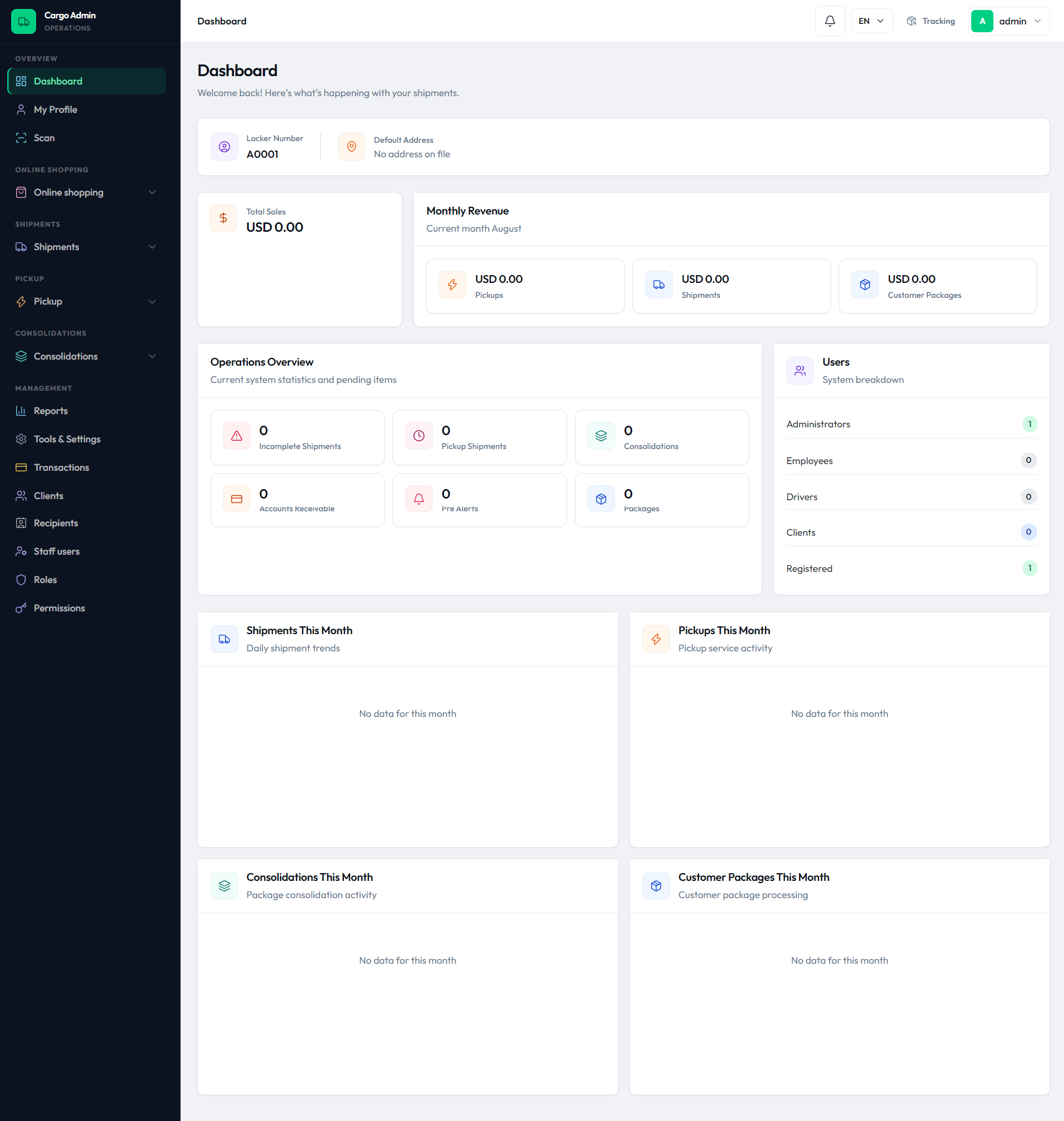
Dashboard
Live totals for the current month: Total Sales, Shipments, Pickups, Customer Packages, Consolidations, Pre Alerts and Packages, plus Incomplete Shipments, Pickup Shipments and Accounts Receivable.
My Profile
Each staff member's own account page — profile fields, password change and personal addresses.
Scan QR / Barcode
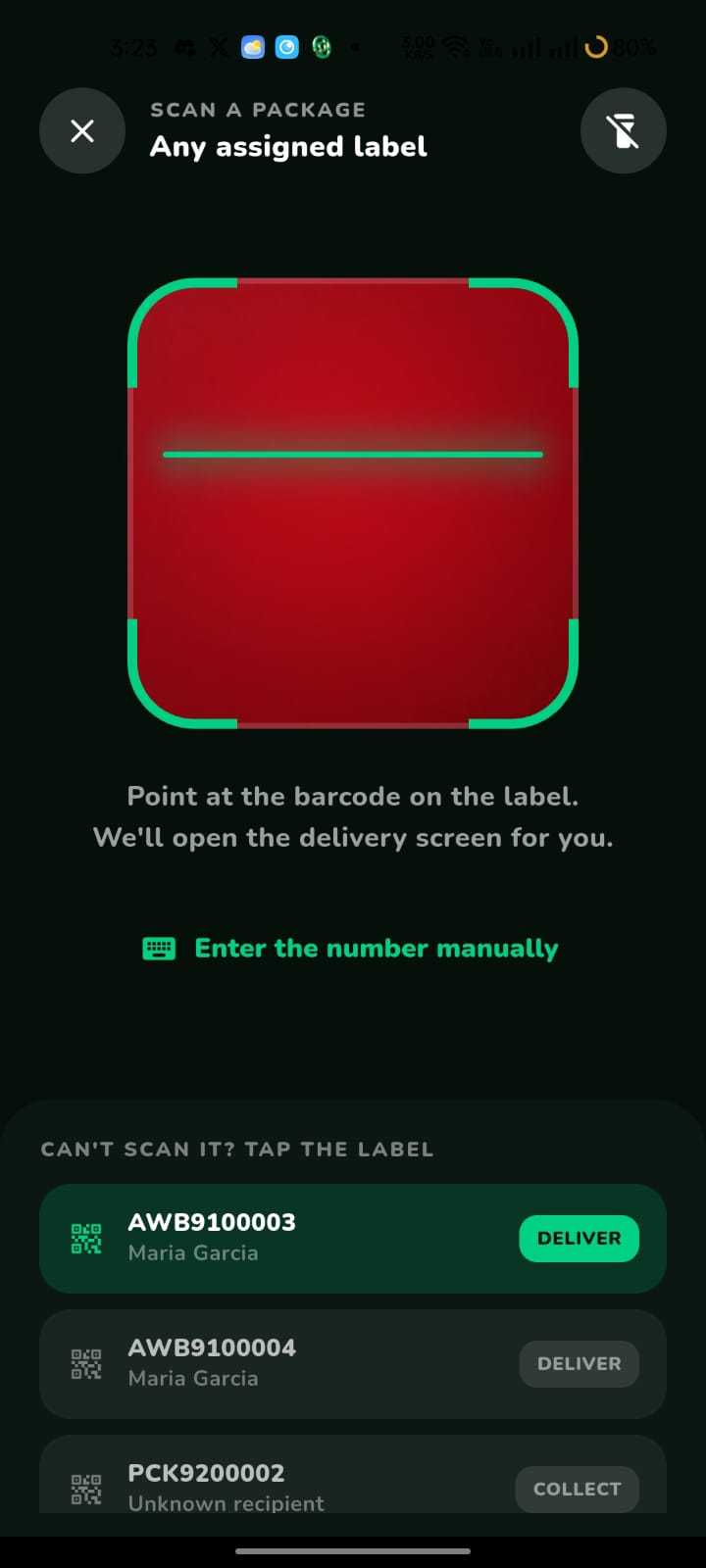
Scan a code with the device camera or type a tracking number manually to jump straight to the matching package, shipment or pickup.
Online shopping — Prealerts & Packages
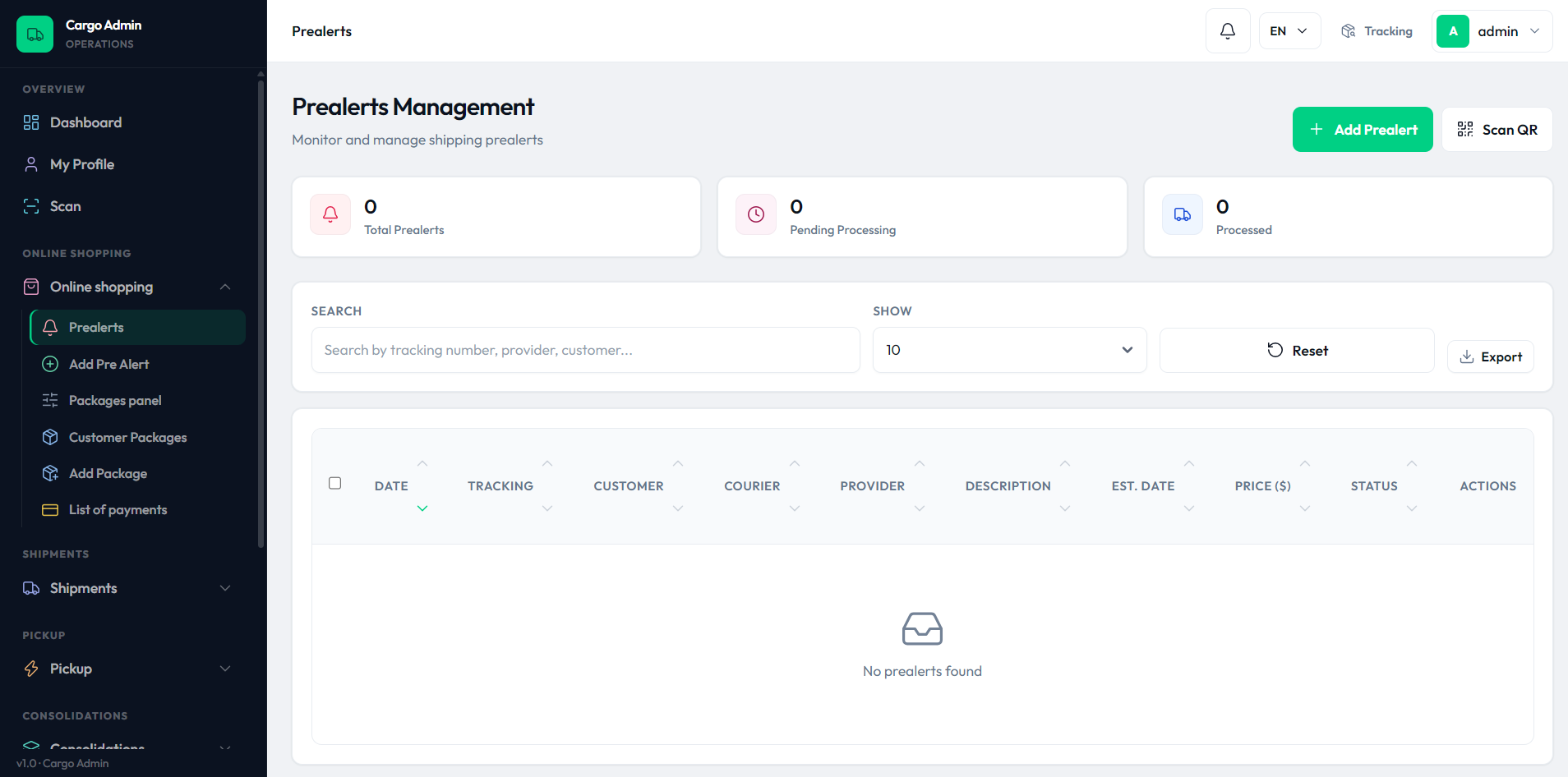
Prealerts
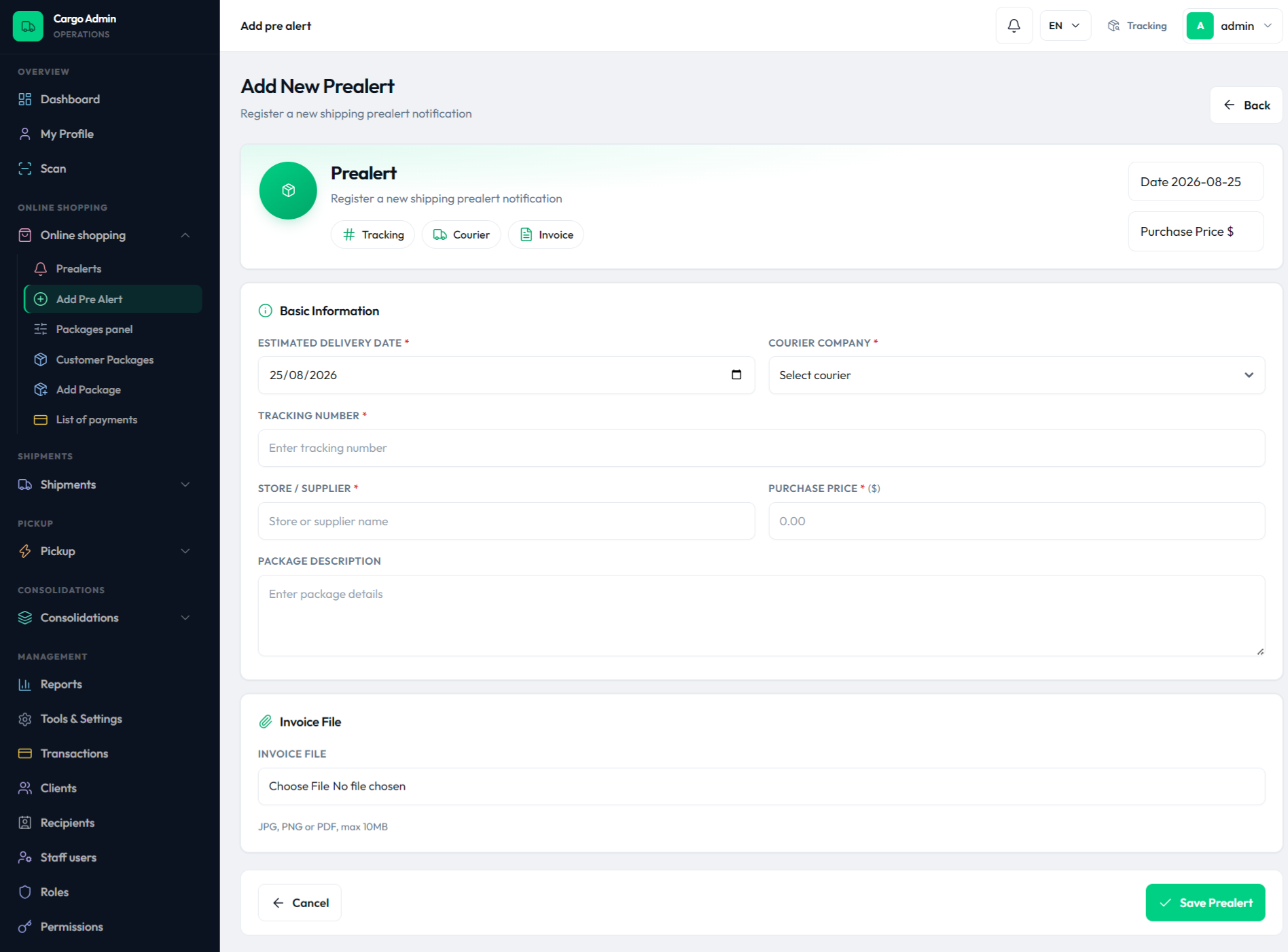
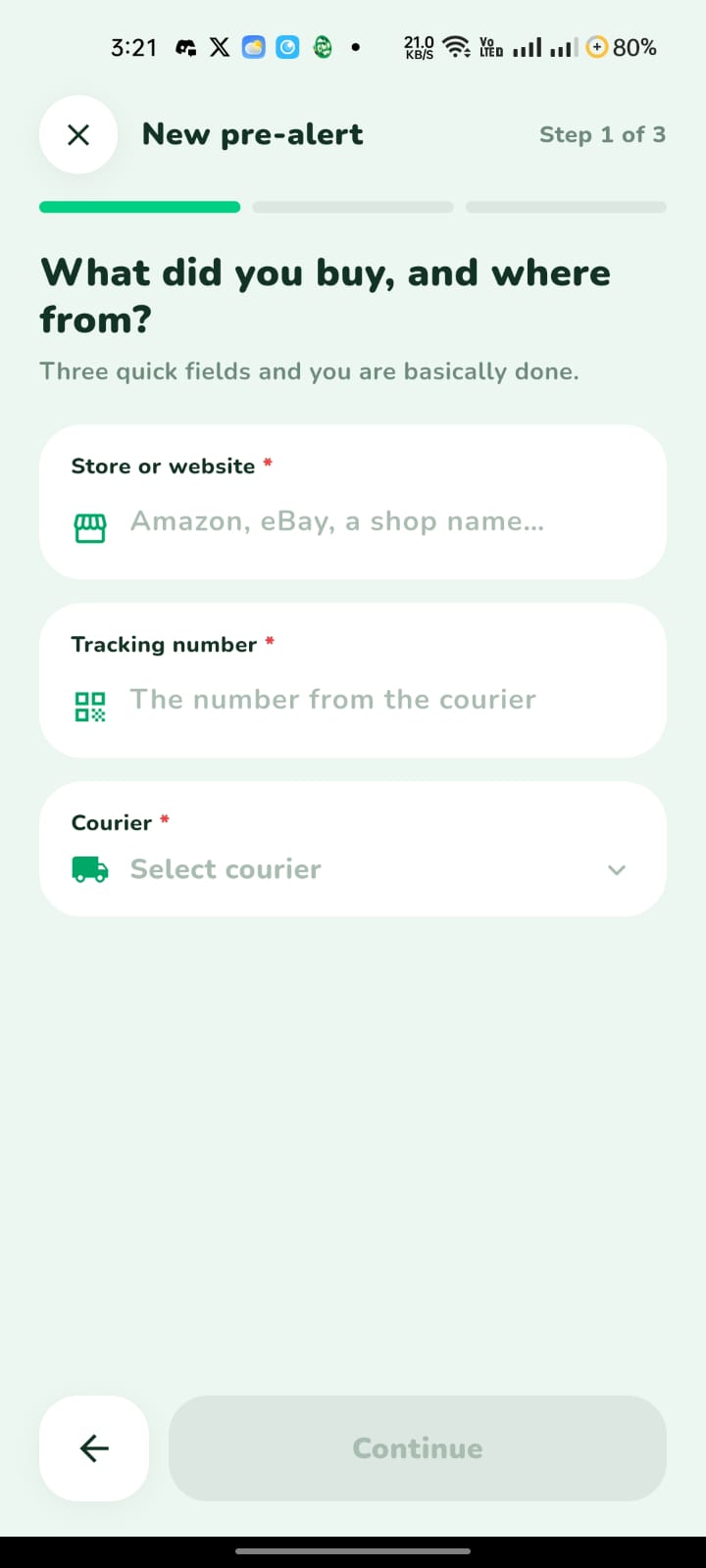
Customers pre-register purchases on the way to your warehouse (tracking number, store, value, optional invoice file). Staff can also create them and email the customer about a prealert.
Customer Packages
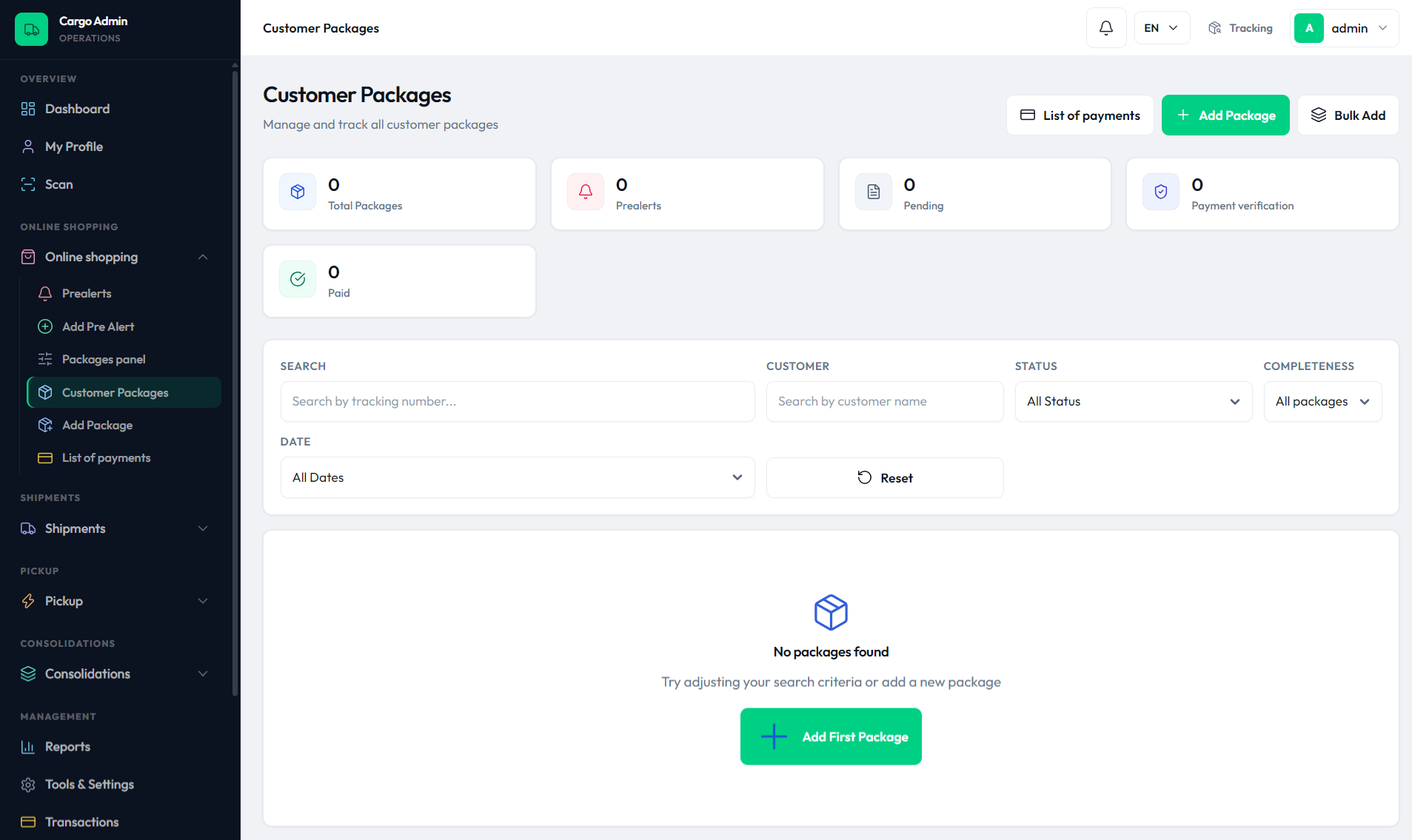
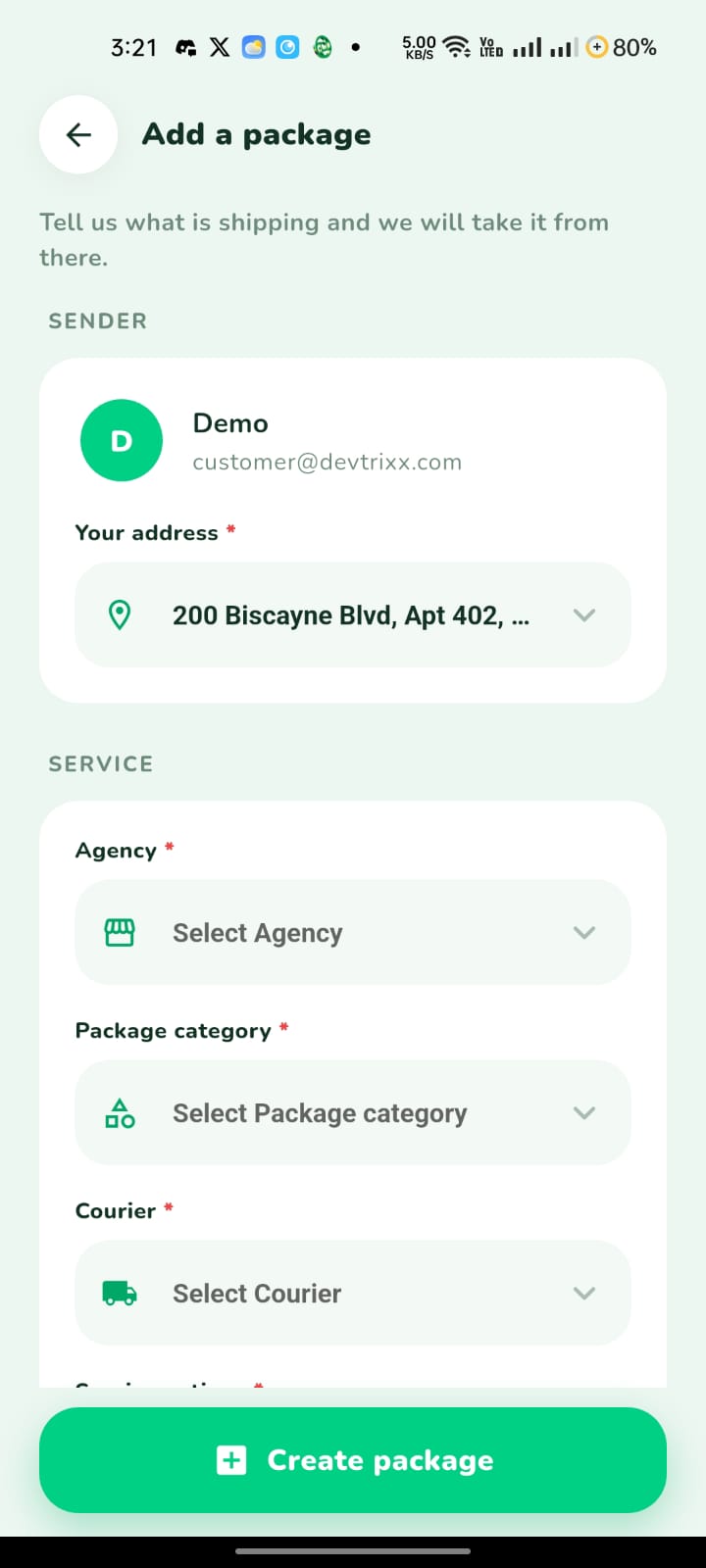
The full registry of received packages — one row per parcel with weight, declared value, sender, locker and status. Includes Add Package, Add From Prealert, bulk create, labels, invoices and a delivery screen.
Packages control panel
A control center over the whole package pipeline: counters for prealerts, total packages, invoiced, payment verification and paid, with a table to push packages through statuses in bulk.
Invoice hold
If customs requires proof of purchase, staff put the package On Hold and the customer uploads the invoice from the app. The hold releases as soon as the file arrives.
Locker
Packages stored in a locker or at the warehouse get an
LK locker number (prefix configurable) and a locker
address; customers filter for them under Packages in the app.
List of payments
Every section (packages, shipments, pickups, consolidations) has its own filtered view of the shared Transactions module.
The core conversion — from a customer's pre-registration to a payable package — runs like this:
flowchart TD
  A[Customer buys in an online store] --> B[Prealert created in app or admin]
  B --> C[Parcel arrives at the warehouse]
  C --> D[Package registered from the prealert]
  D --> E{Invoice on file}
  E -- missing --> F[Status On Hold - invoice required]
  F --> G[Customer uploads invoice in the app]
  G --> H[Hold released]
  E -- present --> H
  H --> I[Weighing and pricing]
  I --> J[Customer pays]
  J --> K[Ready for shipment or pickup]
Key screens
Shipments
Shipments dashboard
An overview of the last month: volumes, values and incomplete shipments at a glance.
Add Shipment / Add Multiple
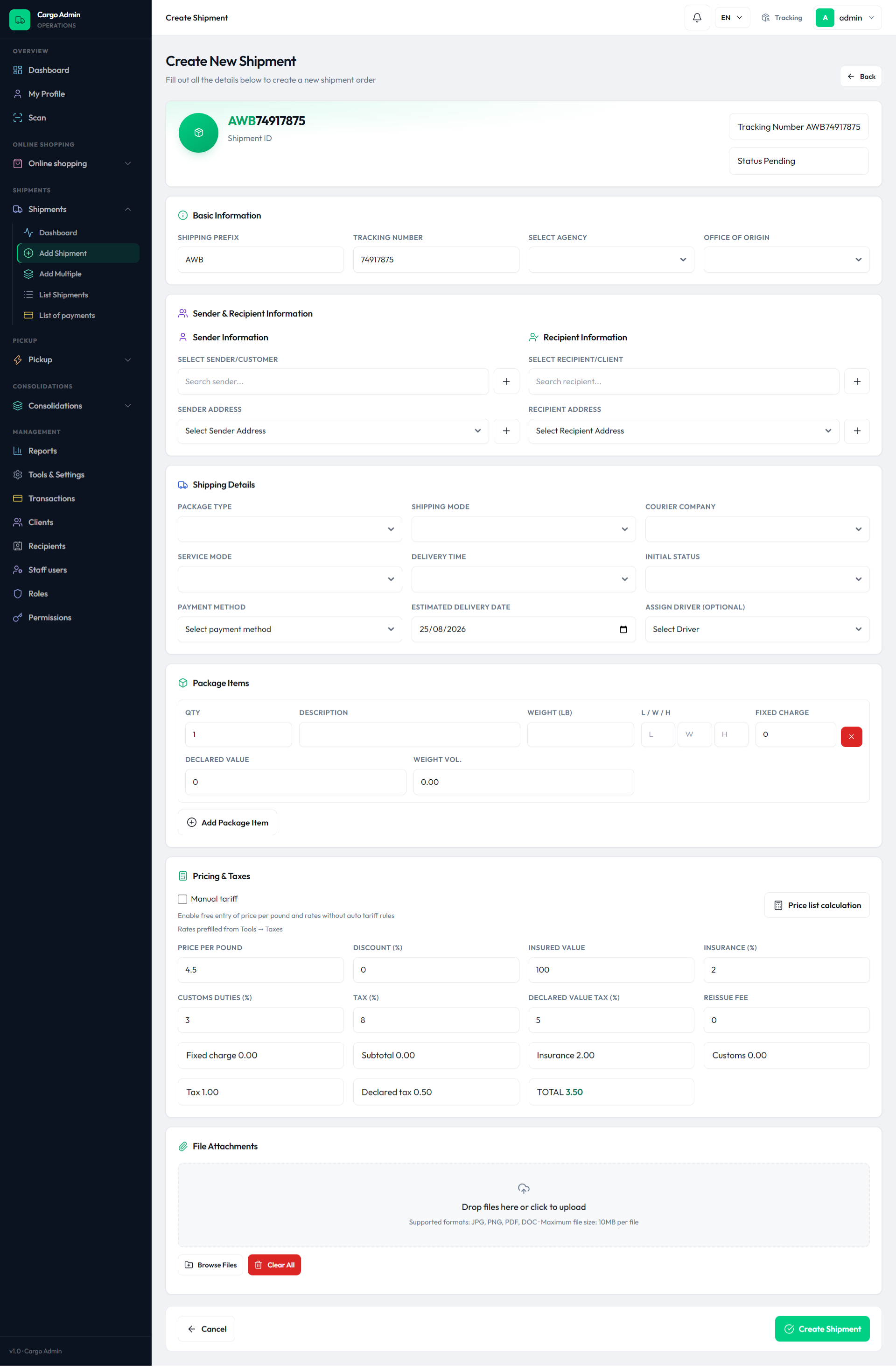
Create one AWB shipment or a batch at once. Every shipment gets
an AWB-prefixed tracking number (prefix and length
configurable).
List Shipments
Track, manage and monitor every shipment — recipient, courier company, driver, rates, printed labels and invoices.
Tracking history
Each shipment keeps a full event history (status changes, dates, locations) that staff see on the detail page and customers see in the app and on the public tracking page.
Public tracking page
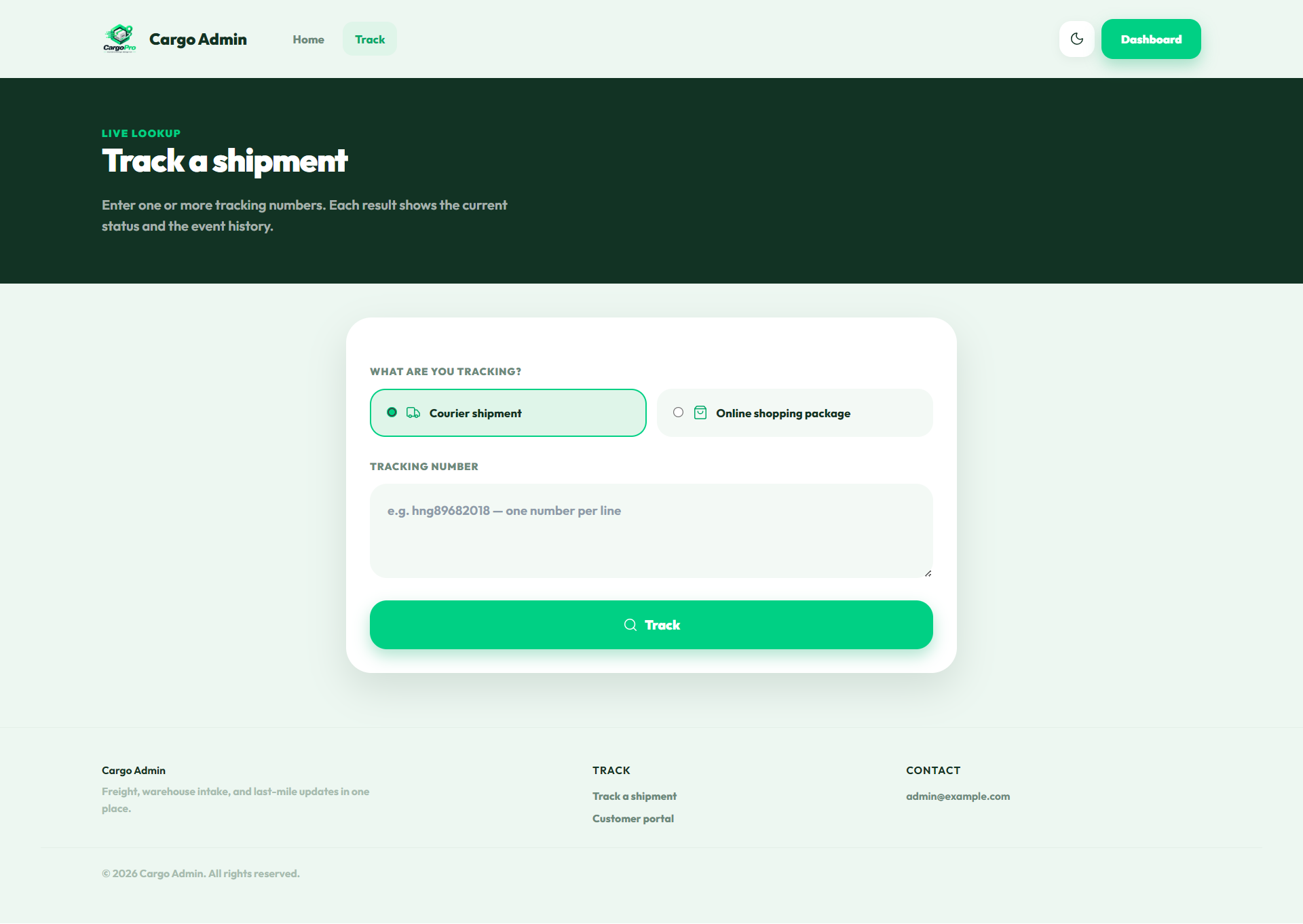
A no-login page on the website where anyone enters a tracking number and sees the current status plus every recorded event.
Shipment and pickup lifecycle statuses are seeded by
ShippingStatusesSeeder.php — labels and colors are
editable in Tools → Shipping Statuses, the system codes stay fixed:
stateDiagram-v2
  [*] --> Pending
  Pending --> Approved: rates confirmed
  Approved --> InTransit
  InTransit --> OutForDelivery
  OutForDelivery --> Delivered
  Pending --> OnHold: invoice missing
  OnHold --> Approved: invoice uploaded
  Approved --> Consolidate: merged into CON order
  Consolidate --> Delivered
  Pending --> Cancelled
Key screens
Pickup
Home pickup requests
Customers schedule a driver to collect packages from a saved address — they pick a date and a time window in the app, and staff review, set the status and assign a driver.
Warehouse self-pickup
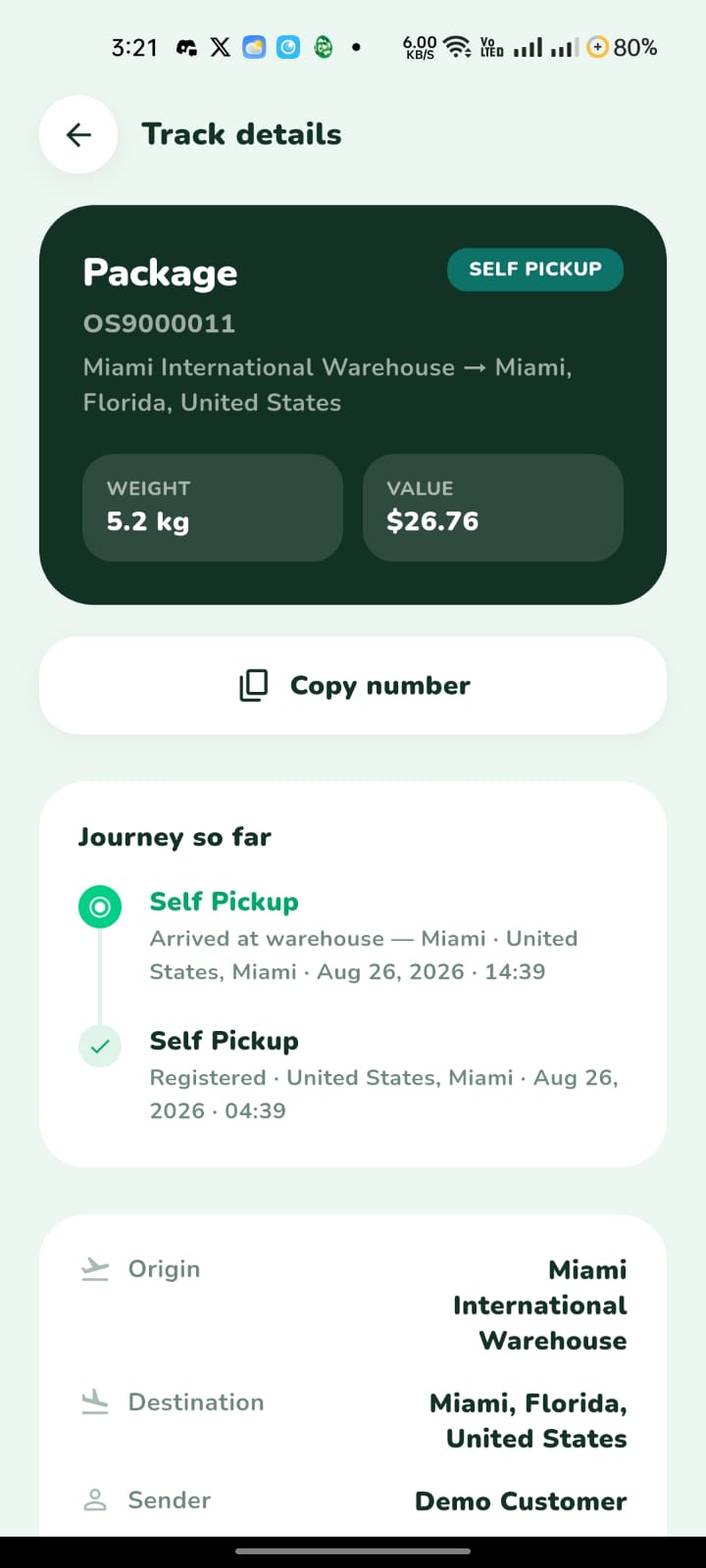
Instead of delivery, customers book a self pickup at the counter for a chosen date and window; the order moves to the Self pickup status until it is handed over.
Pickup management
A dashboard plus the Pickups list with accept, assign-driver, deliver, invoice and label actions for every request.
flowchart TD
  A[Package ready at warehouse or locker] --> B[Customer opens Pickup in the app]
  B --> C[Books warehouse self pickup]
  C --> D[Chooses date and time window]
  D --> E[Order moves to Self pickup status]
  E --> F[Customer collects at the counter]
  F --> G[Staff marks the order Delivered]
Consolidations
Add Consolidation
Merge several shipments and customer packages into one
CON-prefixed order so the customer pays one freight
bill and receives one delivery.
Consolidation control panel
Monitors shipment and package consolidations with analytics — open, in-transit and delivered CON orders, values and drivers.
One delivery
A consolidated order is delivered like a shipment: assign a driver, print one label and one invoice, mark it delivered — member items follow automatically.
Payments & Transactions
Transactions
A shared control panel over the payments_gateway
ledger — every charge across packages, shipments, pickups and
consolidations, with refunds and payment statistics.
Payment gateways
Configured in Tools → Payment Gateways. Ships with
cash, wire, cod,
paypal, stripe and paystack;
you paste the API keys per gateway and toggle each one on/off.
Charges & methods
Payment Methods control where a charge applies (per-shipment, per-package, per-consolidation), while tariffs and taxes feed the invoiced amounts.
Users & access
Clients
The client list: create customers, edit their profile, locker and addresses, and open their account view.
Recipients
My recipients — the delivery address book customers maintain in the app, used when creating shipments.
Staff users
Manage admin users, employees, drivers and super admins in one screen, with per-role counters.
Roles & Permissions
Full RBAC: build roles from granular permissions (for example
prealerts.view, transactions.view,
tools.settings.manage) and the sidebar, buttons and
API respond accordingly.
Customer web dashboard
Clients also get an account area on the website showing their locker number and default address, mirroring the app.
Reports
Reports & Analytics ships with 19 ready reports, each printable
and exportable to Excel (resources/views/admin/reports/index.blade.php):
| Group | Reports |
|---|---|
| Locker packages | General report of registered packages |
| Shipments | General · by customers · employee submission · by agency · by drivers |
| Pickups | General collection · by customers · by employees · by agency · by drivers |
| Consolidated | General · by clients · by employees · by agency · by drivers |
| Accounts receivable | Summary · payments received · customer balance |
Notifications
In-app inbox
A bell in the admin header with an unread badge, a recent-items dropdown and a full Notifications index; every notification links to its target order.
Email · SMS · WhatsApp
Each channel has settings, enable/disable toggles and editable templates (Tools → Communications), including default notification templates.
Push notifications
FCM pushes to both apps, driven by configurable push templates — see the Firebase & Push guide.
Tools & settings
Everything under Tools & Settings is documented in detail on the Admin Tools page. In short, six groups:
General settings
General, Tracking & Invoice (prefixes
AWB/OS/CON/LK),
Taxes & Fees, Default Shipping Info, Logo & Favicon,
Newsletter.
Logistics & locations
Warehouses, branch offices, courier companies, countries, states and cities.
Catalog management
Categories, packaging types, delivery times, incoterms, shipping statuses, shipping lines and shipping modes.
Payment & finance
Payment gateways, payment methods and shipping tariffs.
System & integration
Google API settings, FCM / Push settings and database backup.
Platform-wide
Multi-language & RTL
English, Arabic and Spanish ship with every product
(resources/lang/en|ar|es.json in the admin, matching
.arb files in both apps). Arabic switches the admin
and the apps to a right-to-left layout automatically.
Push notifications
One Firebase project serves both apps; the FCM HTTP v1 service account JSON is configured in Tools → FCM / Push Settings — full setup in the Firebase guide.
In the mobile apps
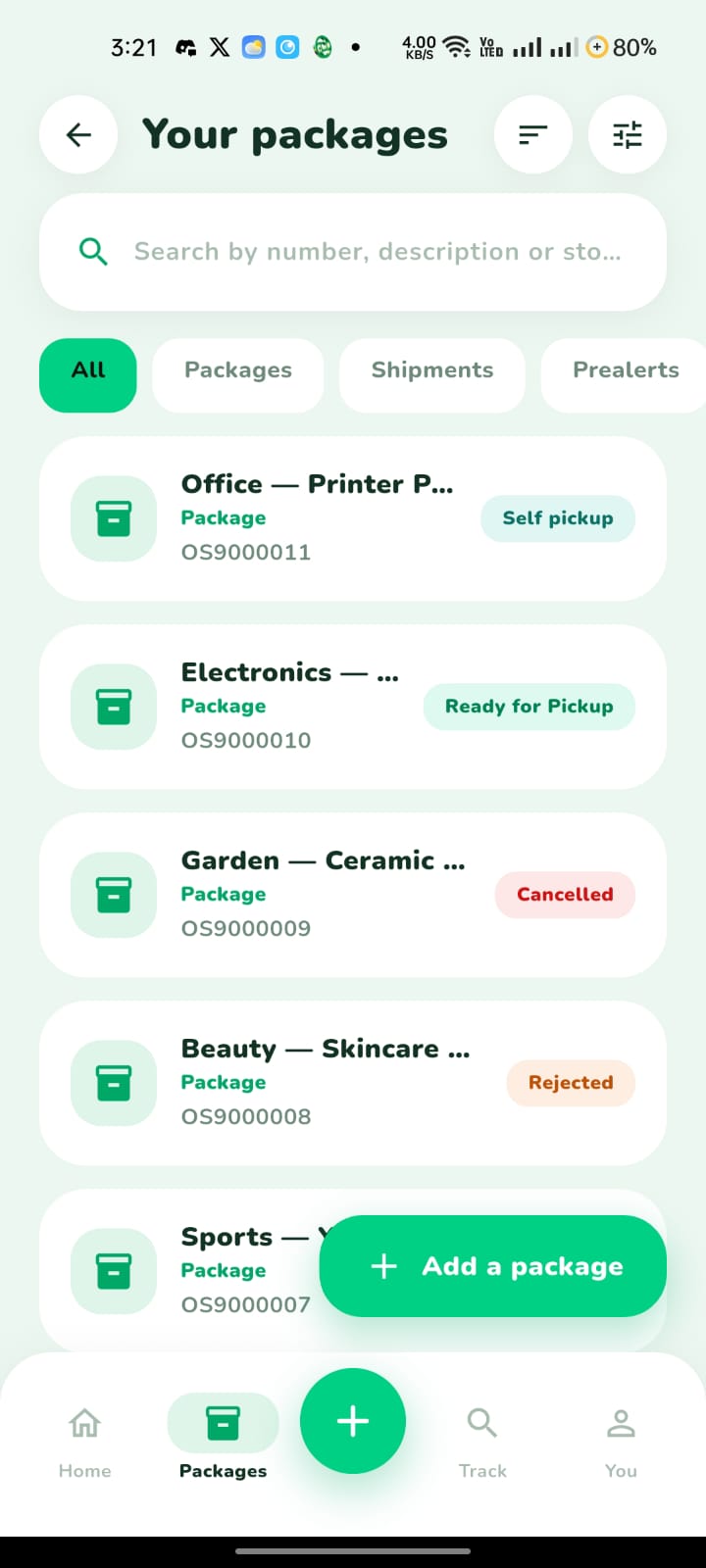
The customer app is a four-tab shell
(lib/screens/main_navigation.dart) with a center
create button:
Home
Greeting, quick actions (Pre-alert, Packages, Pickup, Shipments), package stats, recent activity and the Updates inbox of notifications.
Packages
All packages, shipments, pickups and locker/warehouse items with detail screens, invoice upload and payments.
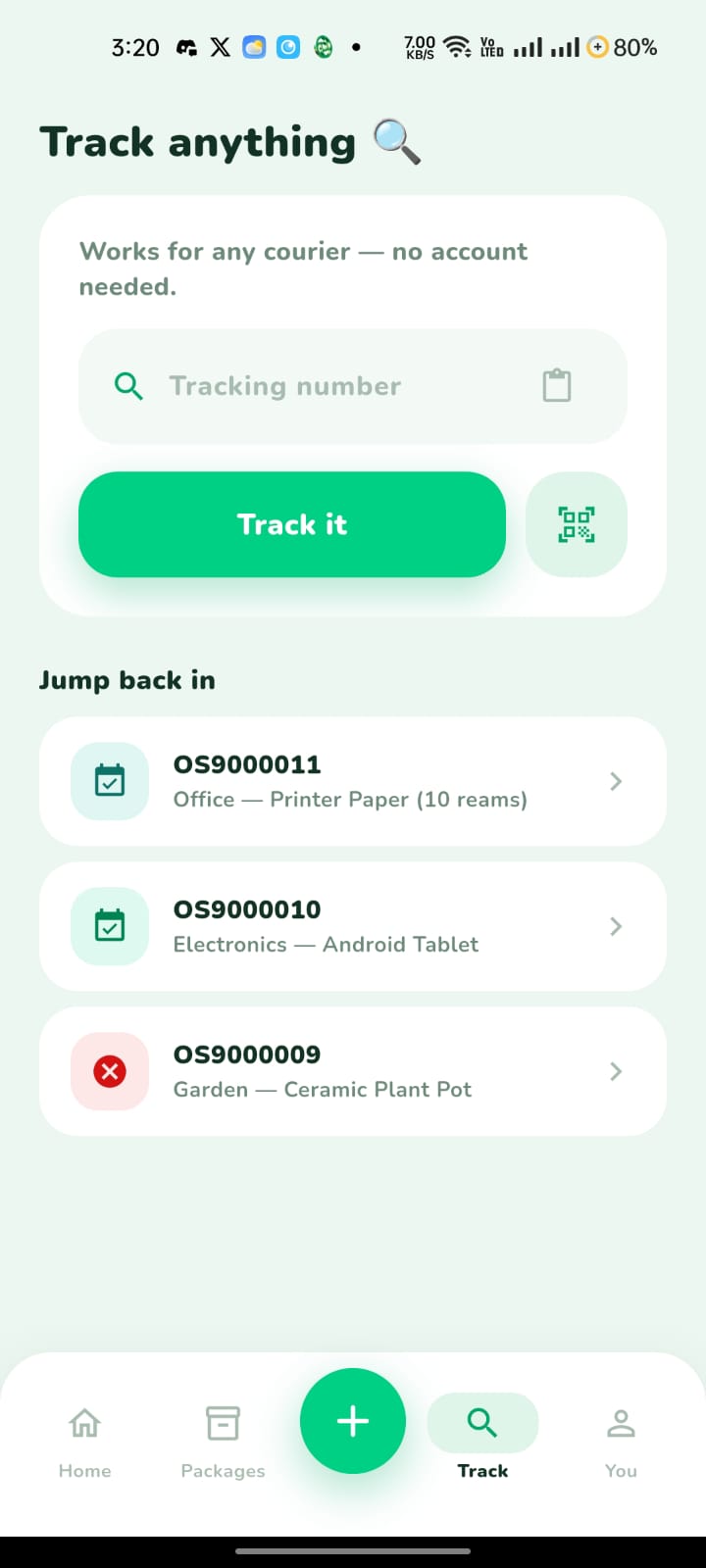
Track
Quick tracking — enter one or more tracking numbers and see the current status plus the full event history.
You
Profile, saved addresses, locker info, language and app settings.
The center + button opens a sheet with three shortcuts: Create Pre Alert, Add Package and Add Shipment.
The driver app is a three-tab shell with an always-available
scanner (lib/screens/shell_screen.dart):
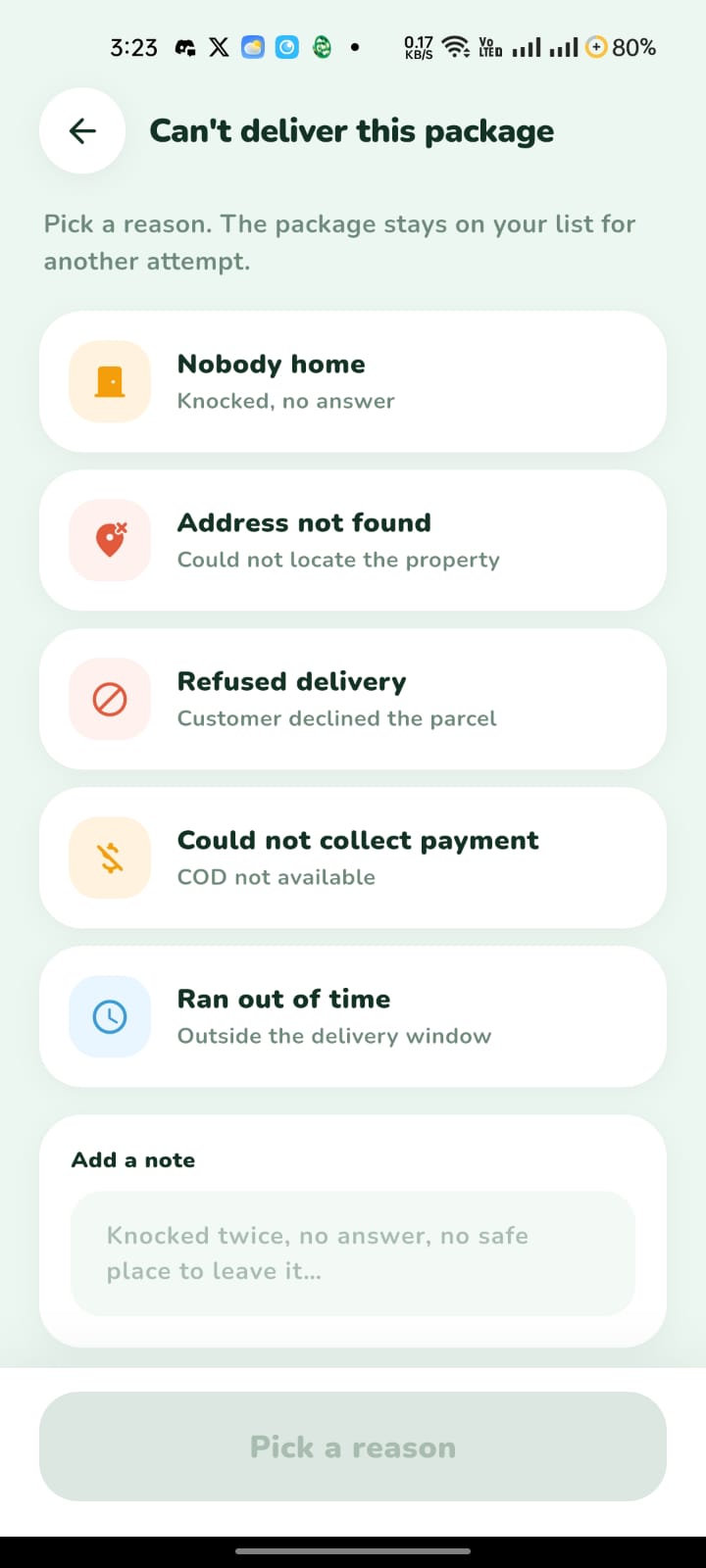
Deliveries
The assigned stop list for the shift, straight from
/api/shipments and /api/pickups;
each stop opens a detail with proof-of-delivery capture.
Scan
A fullscreen barcode/QR scanner that jumps to the matching stop — it overlays the current tab instead of replacing it.
Done
Closed-out stops and delivery history, including an offline sync queue for actions captured without connection.
You
Driver profile, documents and app settings.