Payment Gateways
Turn on online payments: the six gateways that ship with the system, where to get the keys for Stripe, PayPal and Paystack, the Stripe webhook, and how to test before going live.
Overview
Open Tools & Settings → Payment & Finance → Payment Gateways. Six gateways are seeded out of the box:
The storage mechanics of each gateway (table rows, credential keys) are also documented in Admin Tools → Payment gateways.
| Gateway | Keys needed | Seeded state |
|---|---|---|
| Cash | — (instructions only) | Active |
| Wire transfer | — (bank details only) | Active |
| Cash on delivery | — (instructions only) | Active |
| Stripe | Publishable + secret key | Inactive |
| PayPal | Client ID + secret | Inactive |
| Paystack | Public + secret key | Inactive |
The three offline methods (cash, bank/wire transfer, cash on delivery) are active by default and need no keys — their Configure form only asks for Instructions / account details shown to customers. The three online processors ship inactive with empty keys.
Enabling an online gateway is always the same three moves: flip the Active switch on the gateway list (it saves instantly), open its Configure action, paste the keys and press Save. Every configure form also has a Description field — that text is what customers see on the payment screen.
Stripe
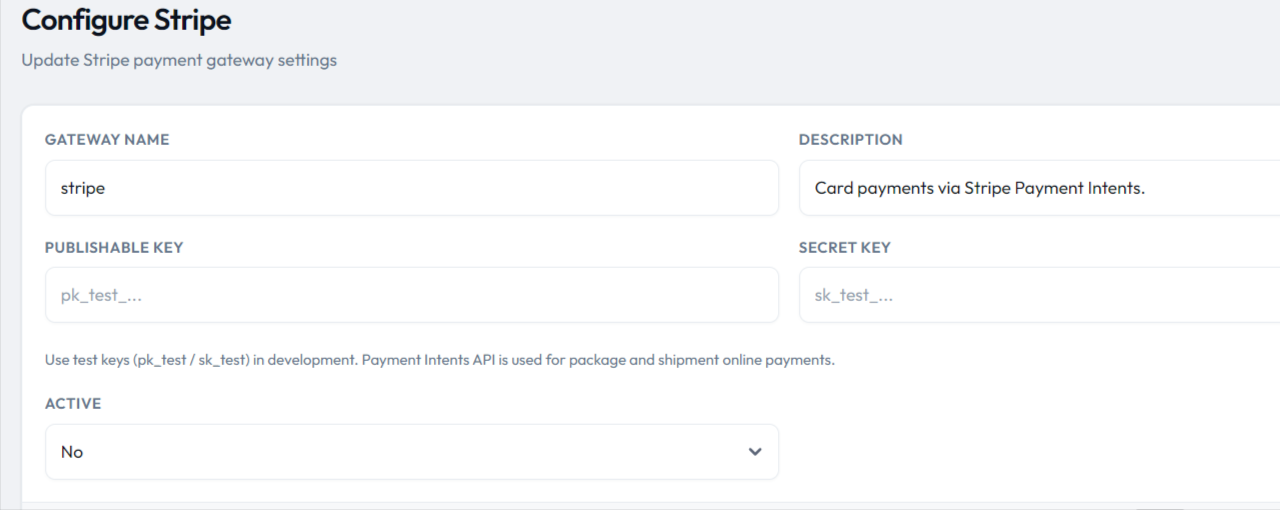
Create keys in the Stripe dashboard and paste them into Configure Stripe:
- Publishable key — starts with
pk_… - Secret key — starts with
sk_…
The form itself suggests starting with test keys
(pk_test_… / sk_test_…) while you develop.
Package and shipment online payments go through the Stripe
Payment Intents API.
Webhook
Add a webhook endpoint in the Stripe dashboard (Developers → Webhooks) pointing to:
https://your-domain.com/api/payments/stripe/webhook
Subscribe to payment_intent.succeeded. Copy the webhook
signing secret (whsec_…) into your
.env as STRIPE_WEBHOOK_SECRET — the backend
uses it to verify the Stripe-Signature header of every
request and rejects anything unsigned or tampered with. When a
payment_intent.succeeded event arrives and checks out,
the matching package or shipment payment is recorded as approved.
STRIPE_WEBHOOK_SECRET is set, the webhook endpoint
answers with an error instead of trusting unverified payloads — the
app-side payment still works; only the automatic confirmation is
affected.
Go live: swap the test keys for live keys in the same form and keep the site on HTTPS — Stripe requires it.
PayPal
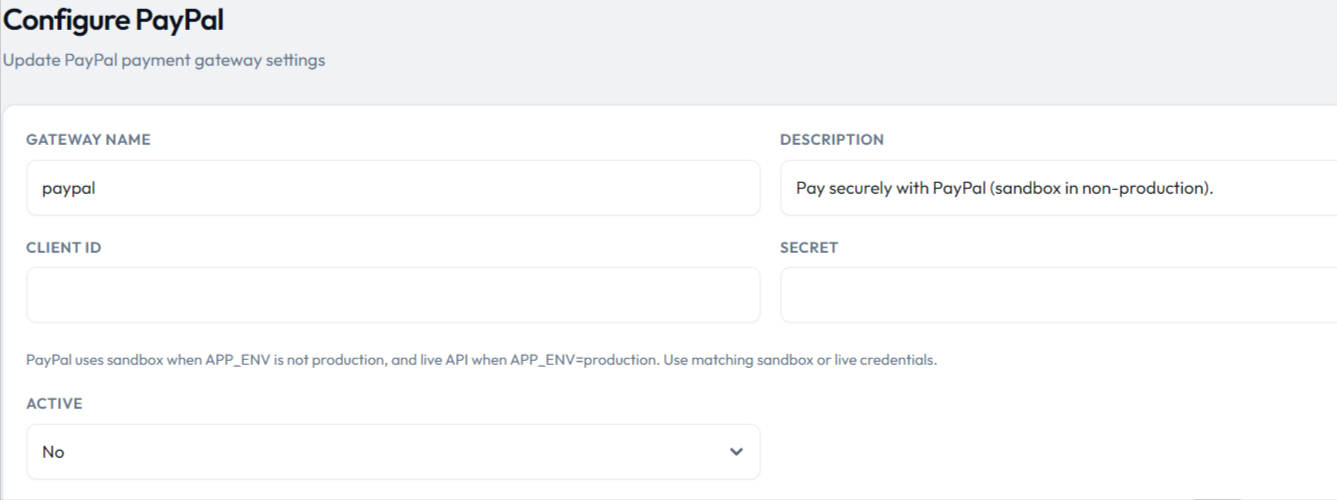
Create a REST app in the
PayPal developer dashboard
and paste the Client ID and Secret into
Configure PayPal. PayPal mode follows your server: it uses the
sandbox while APP_ENV is not production, and
the live API when APP_ENV=production — so use matching
sandbox or live credentials (the configure form says the same).
Paystack
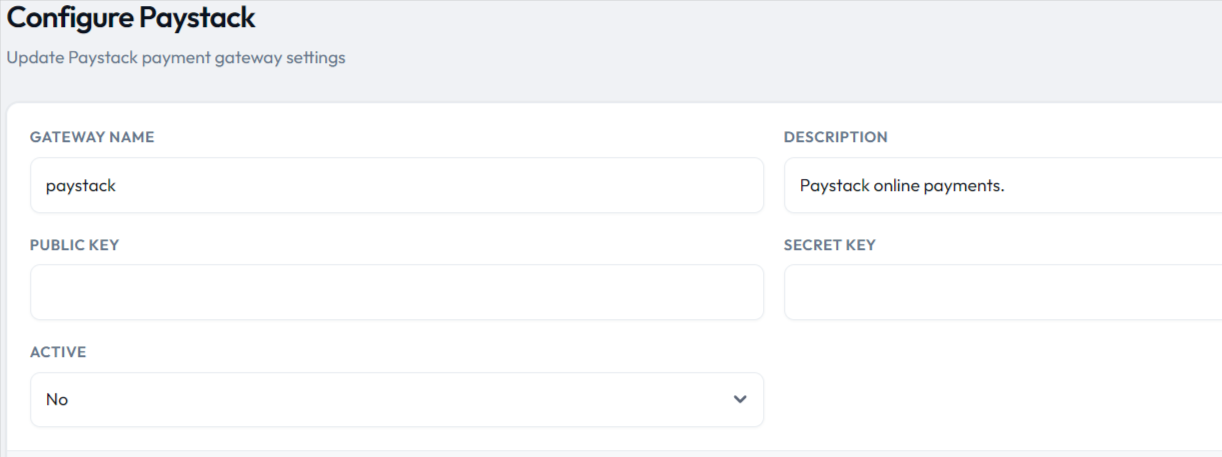
Get the keys from your Paystack dashboard (Settings → API Keys & Webhooks) and paste the Public key and Secret key into Configure Paystack. Paystack is only available to businesses registered in the countries it operates in (Ghana, Nigeria, South Africa, Kenya and others) — confirm your country is supported before relying on it.
Testing & go-live checklist
- Start in test mode — Stripe test keys, PayPal sandbox — and run a full payment through the app.
- Before launch, make one small real charge with live keys and refund it.
- Verify the transaction shows up in Admin → Transactions with the right amount and status.
- Check the currency in General Settings matches what your gateway account supports — mismatched currencies are the usual cause of declined test charges.
- Go live on HTTPS — the processors require it, and PayPal's live mode keys are only honored in production.